Update 1.49.0: ingredient add-ons and substitutions, location selection in the venue profile, and a new sidebar menu 🚀
In Mini Apps Builder 1.49.0, ingredients now support add-ons and substitutions. A customer can add something that isn’t included in the recipe, for example syrup in coffee, or replace an ingredient, for example regular milk with oat milk. This release also includes: location selection on the “Restaurant” tab, an “from” price on product cards with variants, “Repeat order” via the cart, and a new sidebar menu in the dashboard.
Dashboard: ingredient add-ons and substitutions
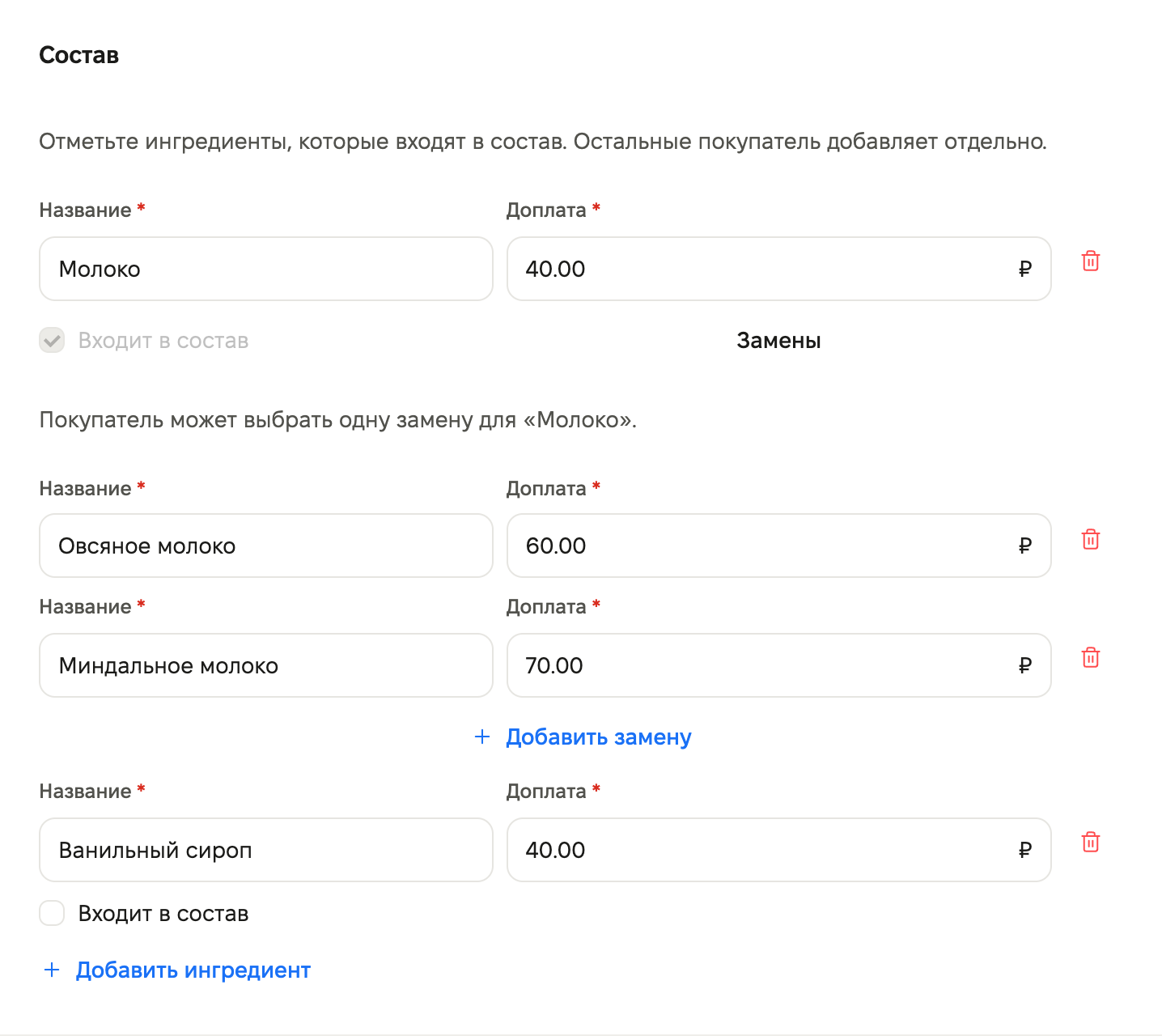
Ingredients are configured in the product card, in the “Composition” block. Previously, each ingredient was included by default. Now each ingredient has a “Included in composition” label:
- Label enabled — the ingredient is part of the dish. The customer can remove it or add an extra portion.
- Label disabled — this is an add-on. The customer adds it manually, for example vanilla syrup.
For an ingredient that is part of the composition, you can set substitutions: click “Substitutions”, then “Add substitution”. Each substitution has its own name and extra charge. The customer chooses one substitution, for example oat or almond milk instead of regular milk. While an ingredient has substitutions, the “Included in composition” label cannot be turned off.
Mini app: choosing add-ons and substitutions
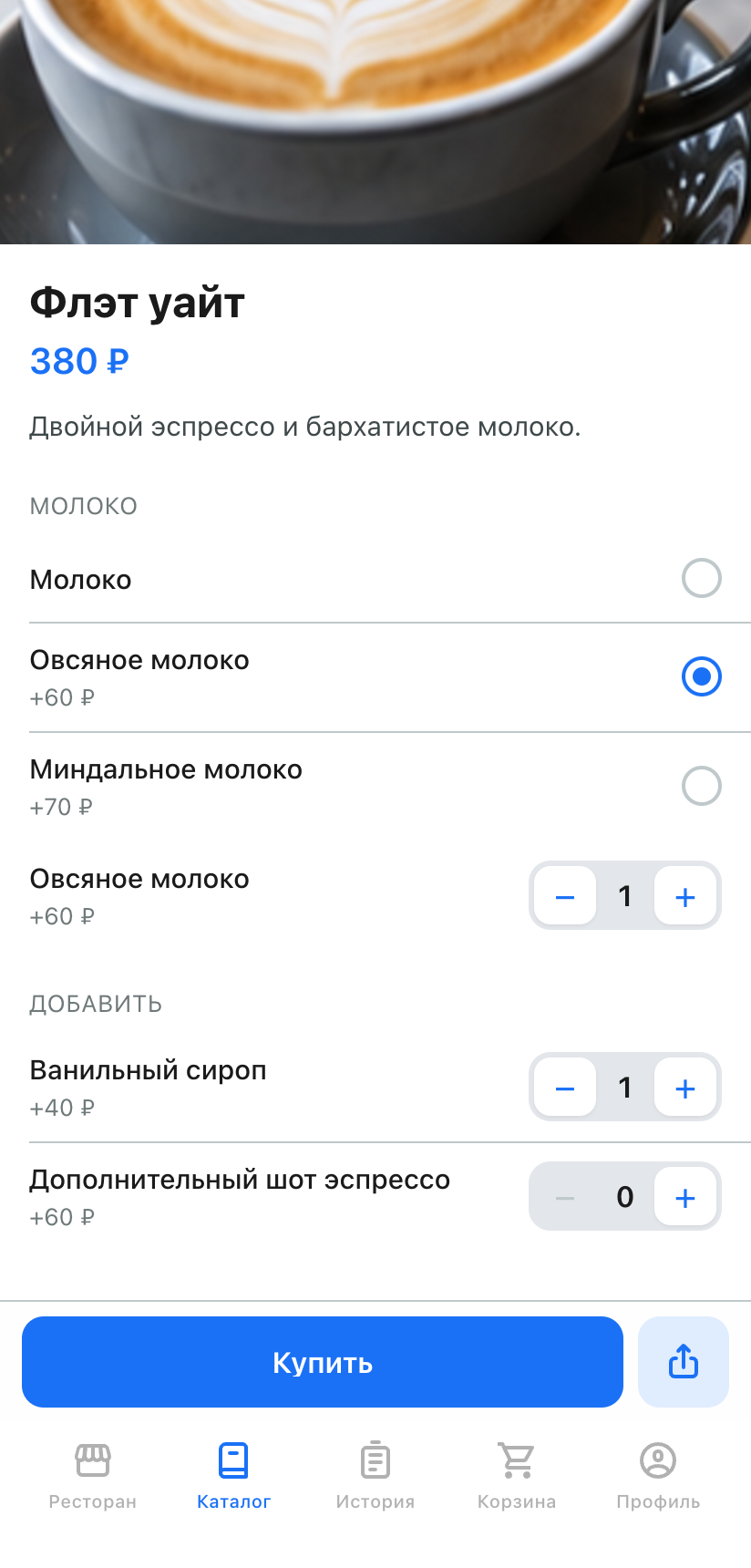
On the product page, an ingredient with substitutions is shown as a list: the customer selects one option and then chooses the number of portions below. If they set it to 0, the ingredient will be removed from the dish, and the base product price will not decrease. Each substitution portion is charged at its extra price.
Add-ons are grouped in the “Add” block. Each add-on has a portion counter and an extra charge. The product price is recalculated instantly.
The same product with a different composition is added to the cart as a separate line item. In the cart, order history, and the order in the dashboard, you can see what the customer chose, for example “Oat milk ×2 instead of Milk”.
Mini app: selecting a location in the venue profile
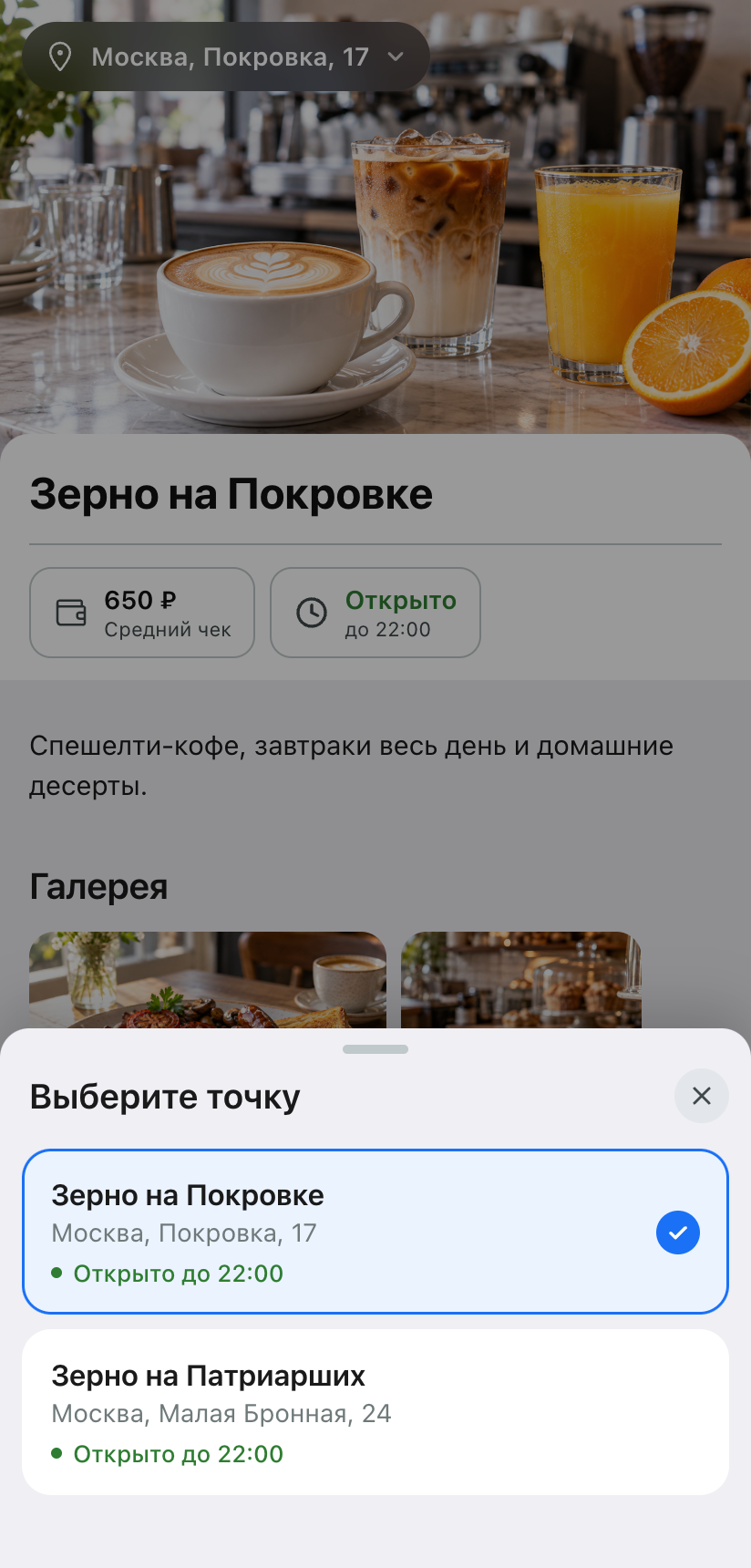
If a venue has multiple locations, on the “Restaurant” tab a button with the address of the current location has appeared over the cover image. It opens the “Choose a location” window: each location shows its name, address, and working status. After selection, the screen shows the profile of the chosen location.
In the catalog, location selection also opens with a single button at the top of the screen. The same window is used to choose the order fulfillment method — the “How to get your order” block. If the new location doesn’t support the previous fulfillment method, the mini app will choose another one and notify the customer.
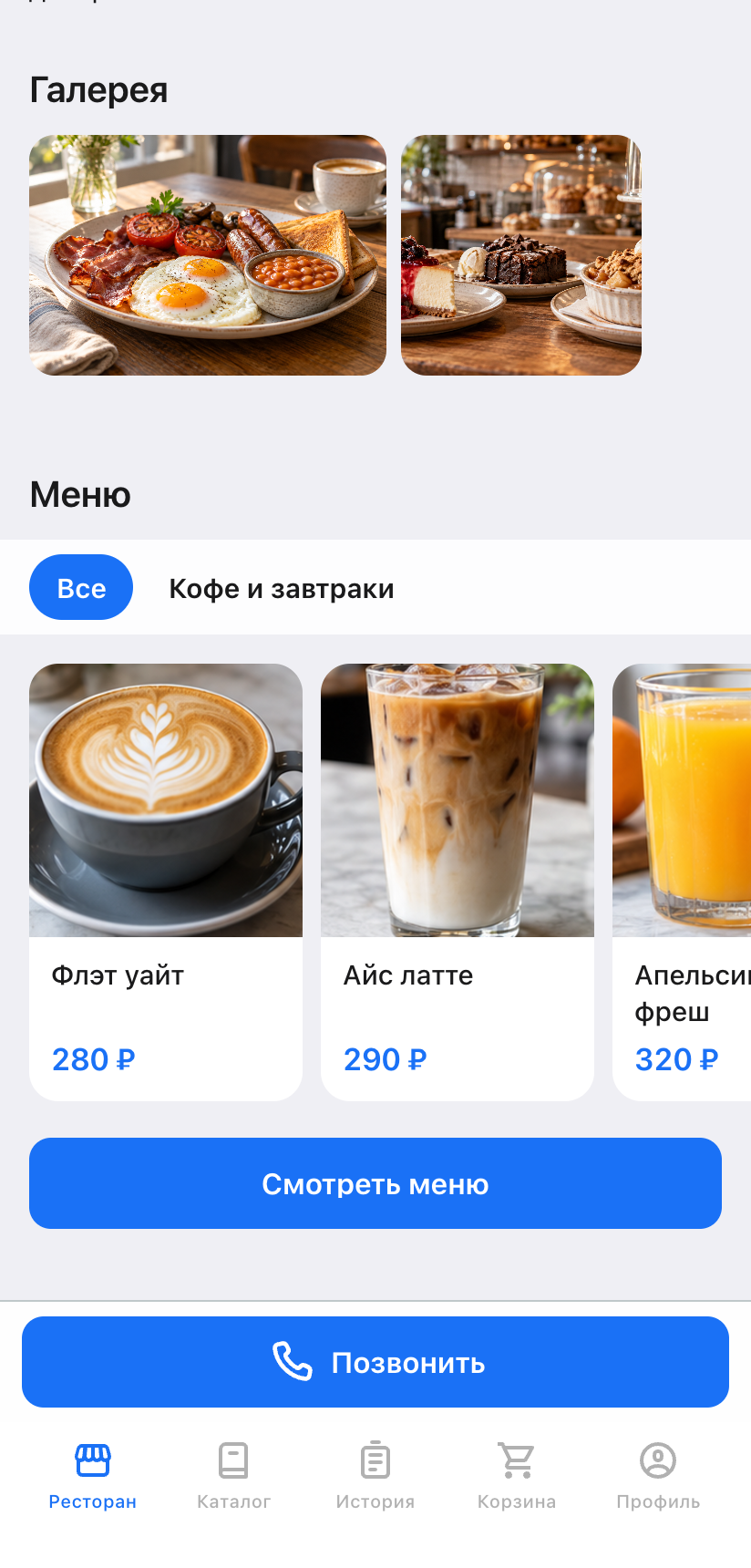
In the “Menu” block on the “Restaurant” tab, up to eight products from each category are shown, and the prices on the cards are aligned to the bottom edge. The “View menu” button below the cards opens the full catalog.
Mini app: “from” price on cards
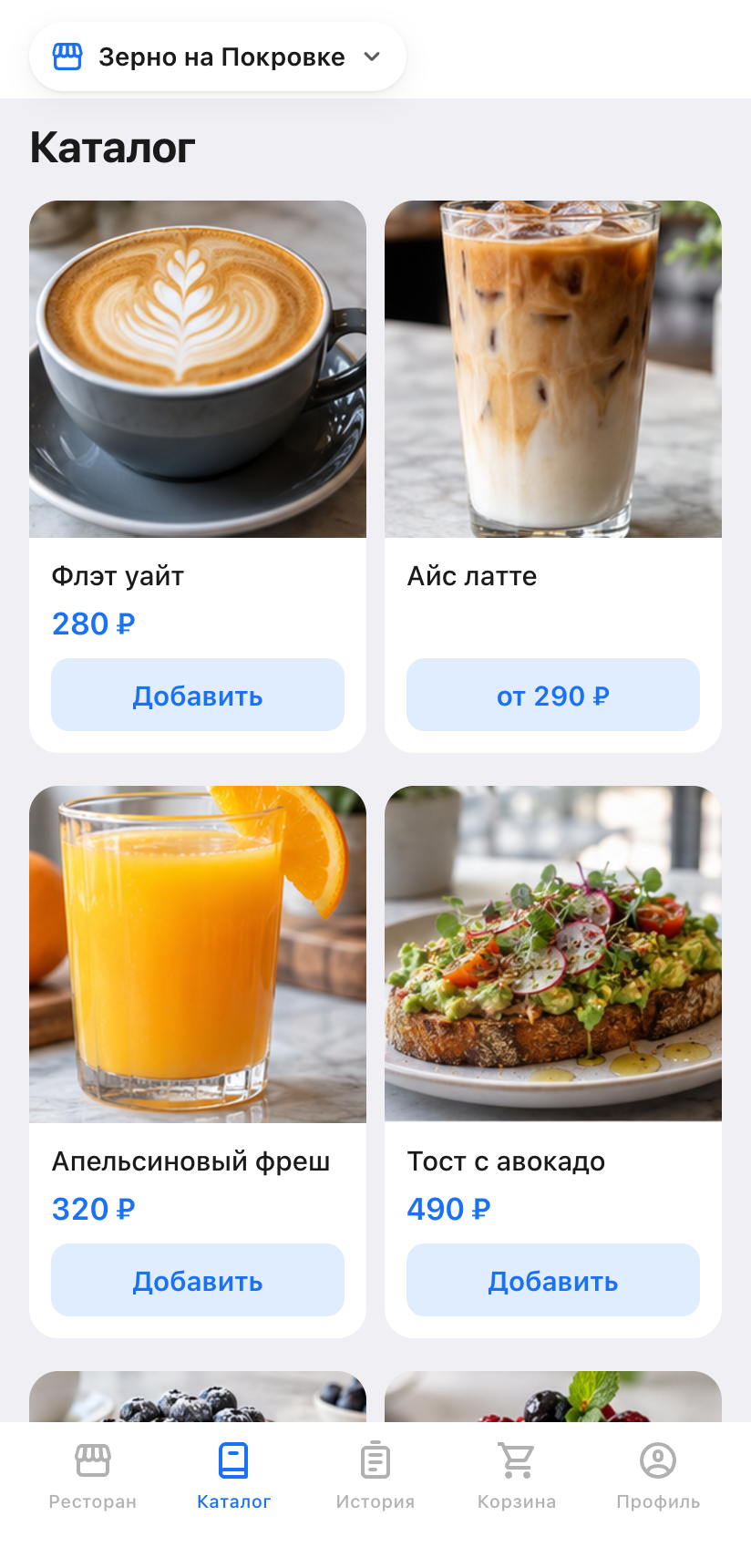
If a product has variants with different prices, for example sizes 0.3, 0.4, and 0.5 L, the catalog card now shows a button with the minimum price, for example “from 290 ₽”. It opens the product, where the customer chooses a variant. The same button appears if there are more than five variants. Free product cards remain unchanged.
Mini app: “Repeat order” via the cart
The “Repeat order” button no longer creates an order right away. Instead, it replaces the cart contents with items from the previous order and opens the cart. The customer can change the composition, choose a different location or fulfillment method, and only then place a new order. This button now works for all fulfillment methods, both in the order list and on the order page.
Dashboard: new sidebar menu
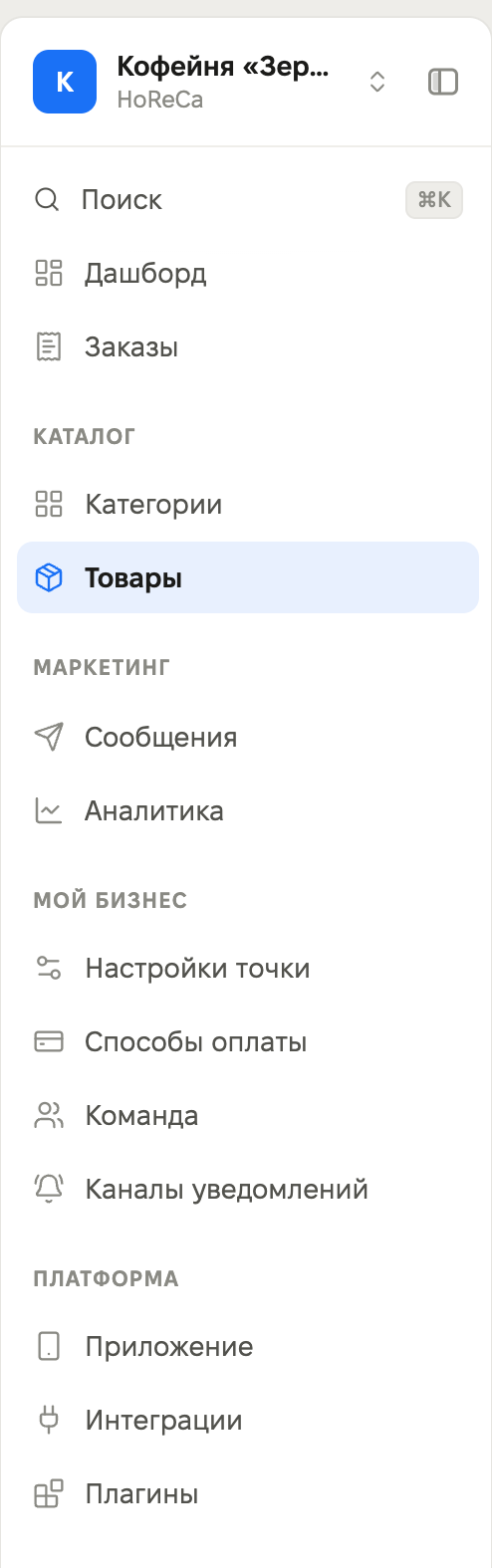
The sidebar sections are grouped under headings: “Catalog”, “Marketing”, “My business”, and “Platform”. All sections within each group are visible right away, so there is no need to expand them. In the “My business” group: “Location settings”, “Payment methods”, “Team”, and “Notification channels”. In the “Platform” group: “App”, “Integrations”, and “Plugins”.
The plan status is now shared between the avatar and the plan card. During the trial period, the avatar shows the “TRIAL” label. The plan card shows the plan name and the remaining time, and the button is called “Subscribe”.
Dashboard: venue profile
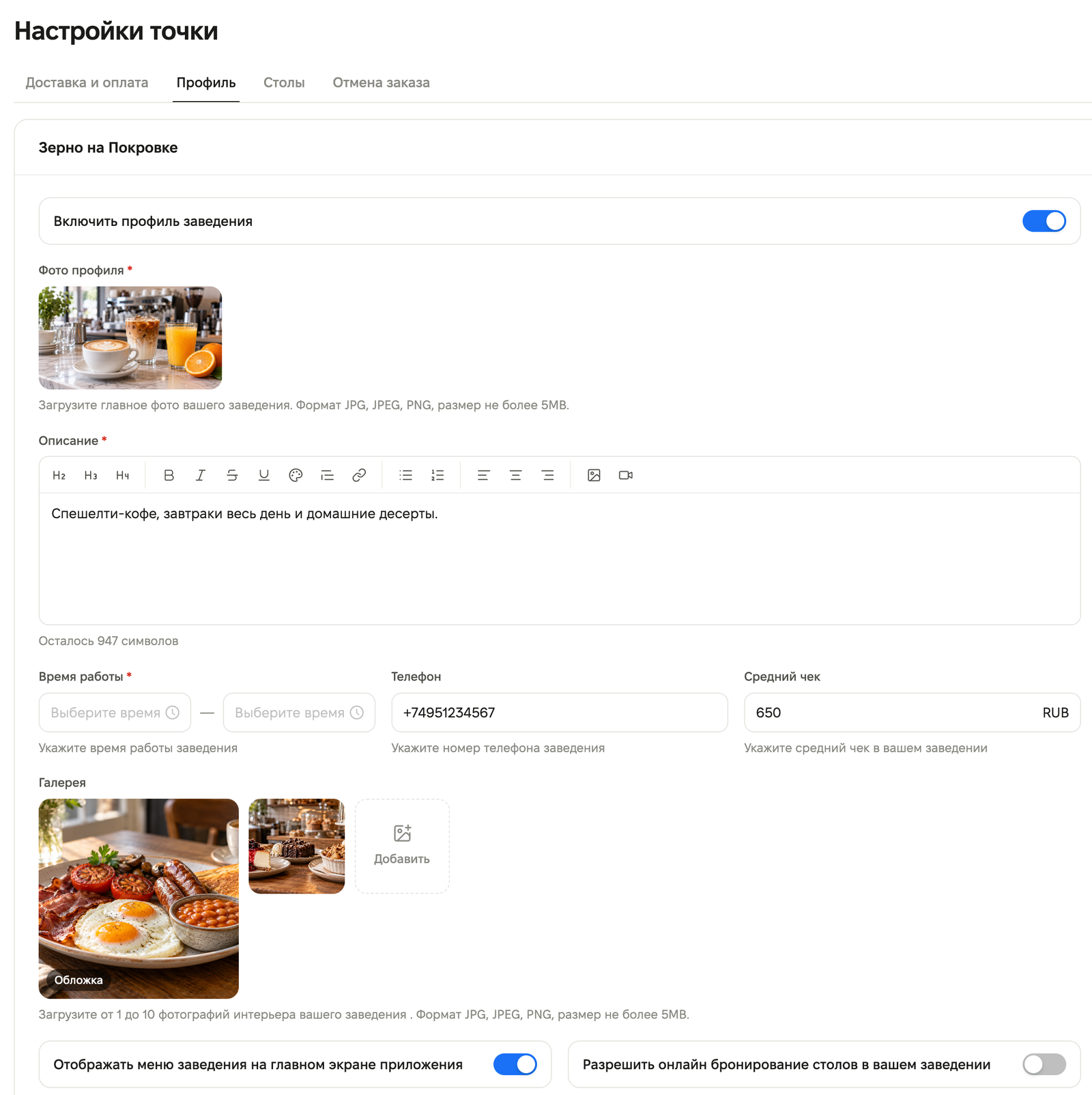
In the “Location settings” section on the “Profile” tab, the switch is now called “Enable venue profile”. The “Working hours”, “Phone”, and “Average check” fields are on one line, and the profile photo preview is more compact. The menu and online booking switches are placed side by side on one line.
Fixes
- The second location profile is now saved. Previously, when saving a new location profile, an error appeared and the entered data was lost.
- The “Orders” section now opens without an error when you go to the app from the “My apps” list.
- The CRM AI agent finds a knowledge base article even if the customer asked the question in a different word order or form. Previously, for the question “what is the dog’s name” with the article “What is the dog’s name”, the agent would pass the conversation to an operator.
We also fixed some bugs and improved service stability in this release.