
Mini App-қа тауарды қалай қосуға болады: қадамдық нұсқаулық
Anton Ingachev
2026 ж. 16 тамыз
Кез келген түрдегі қосымшаға тауар қосу үшін "Тауарлар" бөлімін ашып, экранның оң жақ шетіне жақын орналасқан "Тауар қосу" батырмасын басу керек.
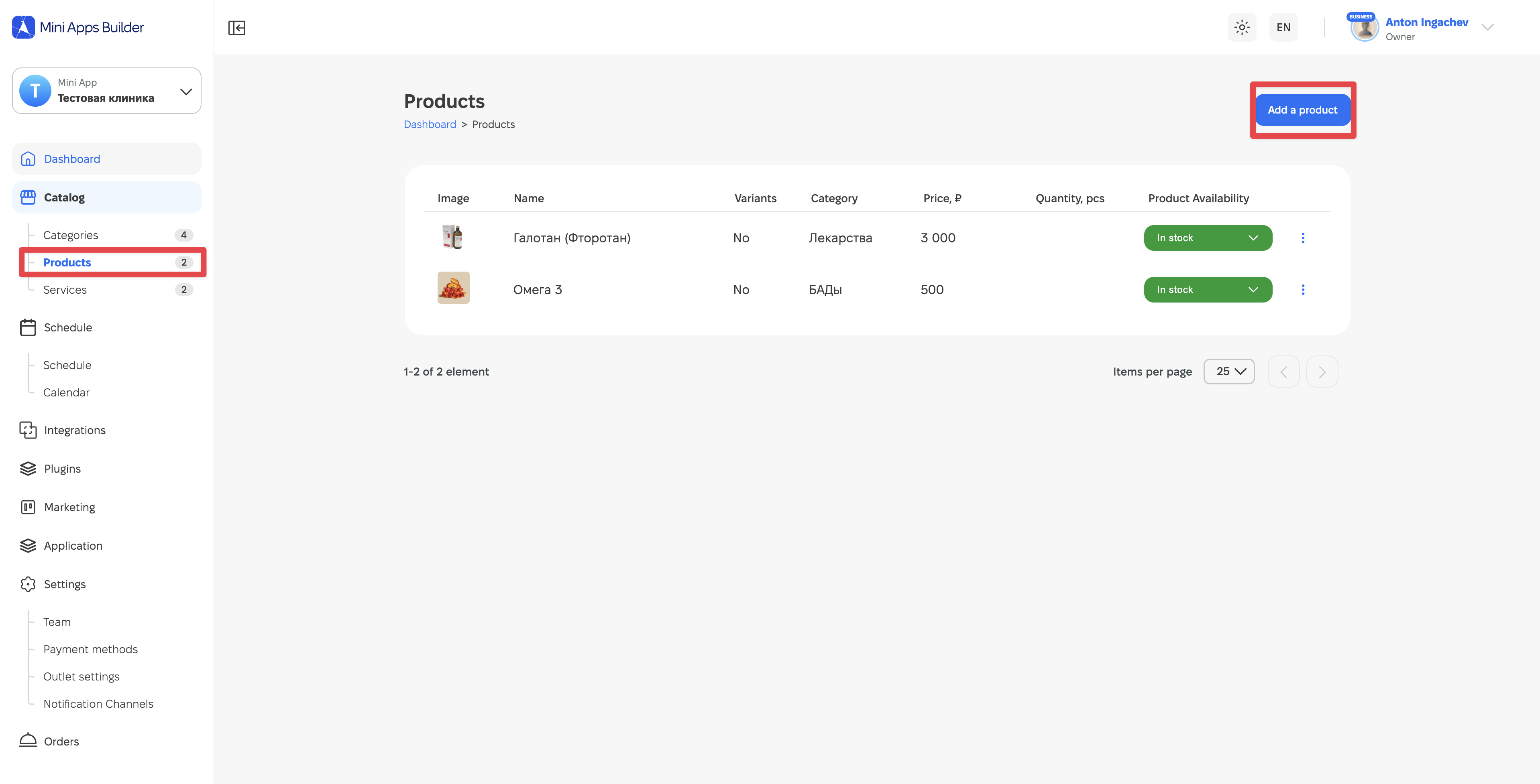
Осыдан кейін тауар туралы деректерді енгізу экраны ашылады.
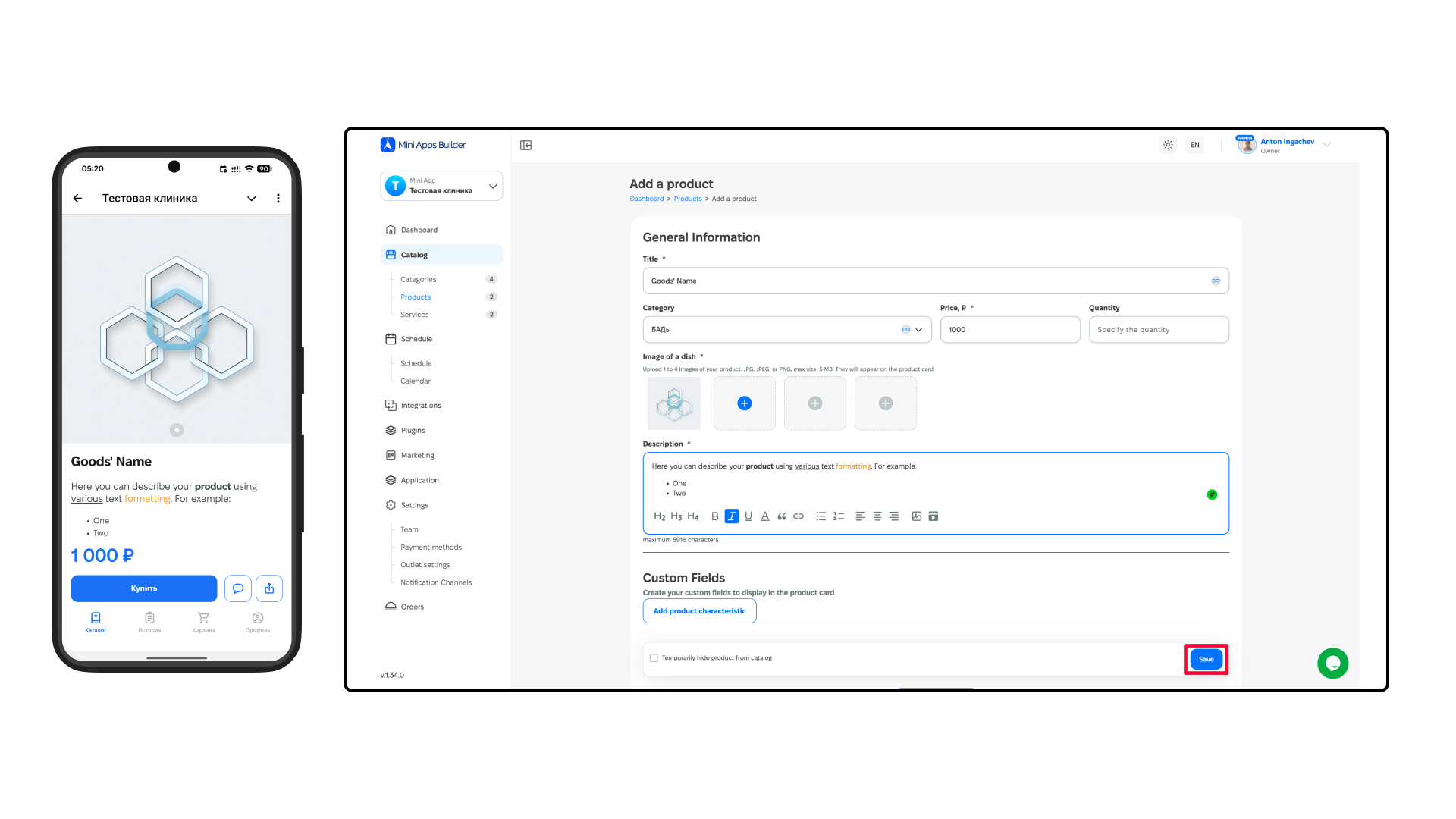
Жұлдызшасы бар өрістер (өріс атауының жанында) міндетті түрде толтырылуы керек:
- Тауар атауы (міндетті).
- Тауар санаты (міндетті емес).
- Бағасы (міндетті).
- Саны (міндетті емес).
- Кемінде бір сурет қосу (міндетті).
- Тауар сипаттамасын қосу (міндетті).
- Экранның төменгі оң жағындағы "Сақтау" батырмасын басу.
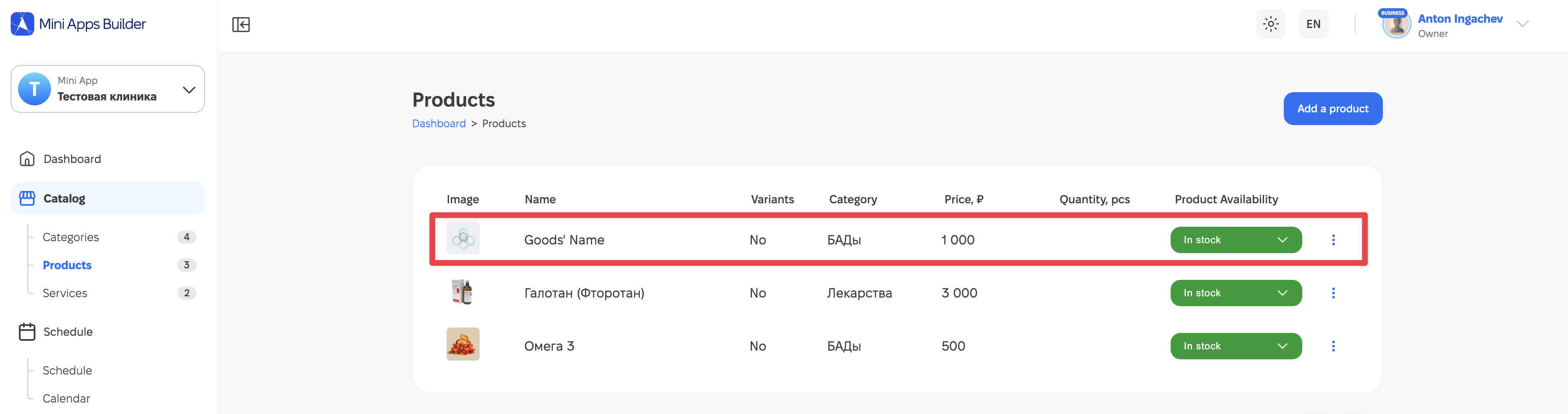
Осыдан кейін тауар тауарлар тізімінде пайда болады. Оны кез келген уақытта қолжетімділік күйінен кейін тұрған "үш тік нүкте" арқылы жоюға, жасыруға немесе өңдеуге болады.