Update 1.62.0 — Telegram Business in CRM and New Website Pages
Chats from a connected Telegram Business account now appear in CRM. If the bot can reply on behalf of the account, a manager from the dashboard or an enabled AI agent can carry on the conversation.
CRM and Telegram Business
Connect the app bot with CRM enabled to a Telegram Business account. New messages from available private chats will appear in this app's CRM. The manager and the AI agent reply on behalf of the connected account. If the owner replies to the customer directly in Telegram in an already started conversation, CRM will switch that chat to manual replies.
If Telegram Business does not allow the bot to reply, a "Read only" warning will appear in the chat, and the reply field will become unavailable.
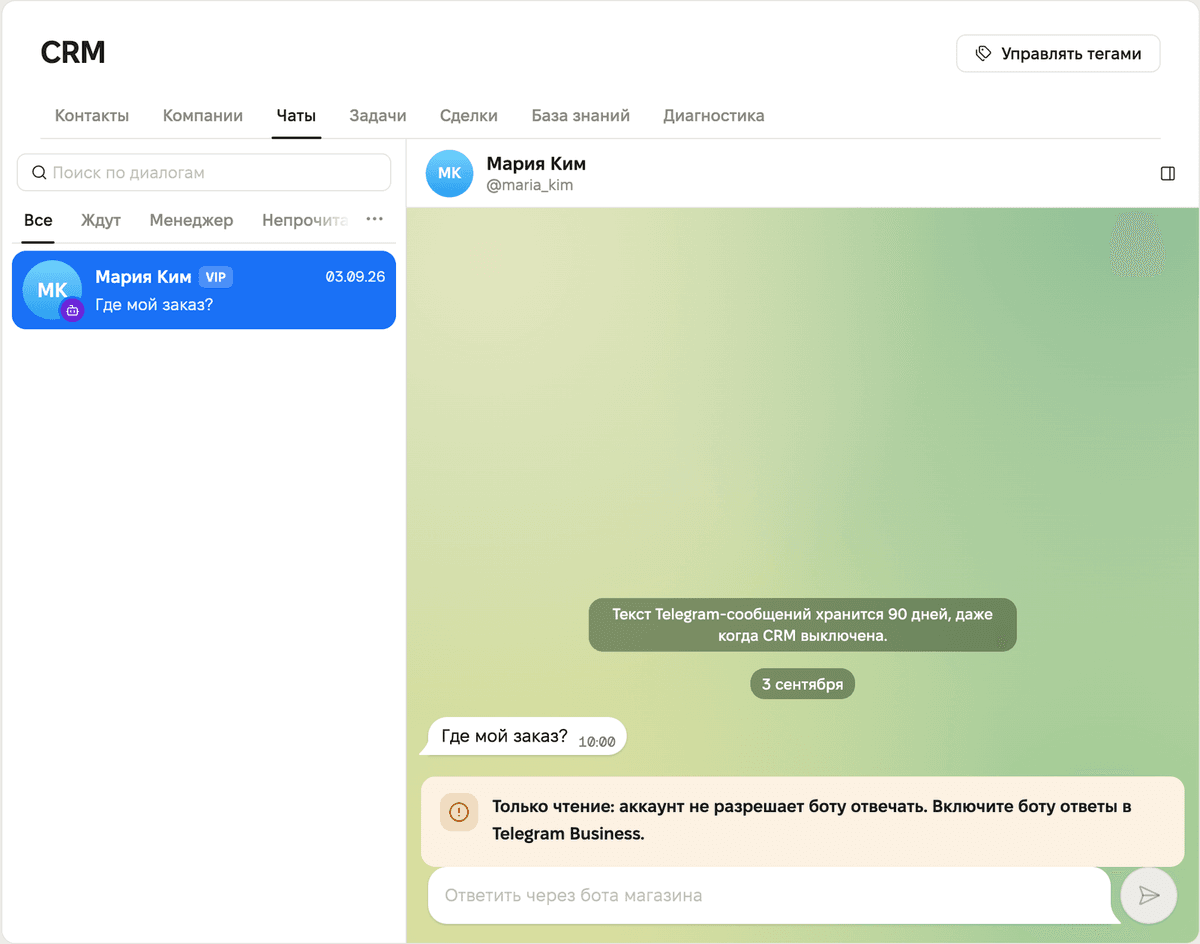
In the "Diagnostics" tab, you can see on behalf of which accounts the bot can reply, for which ones only read-only access is available, and which accounts have disabled the bot.

Dashboard
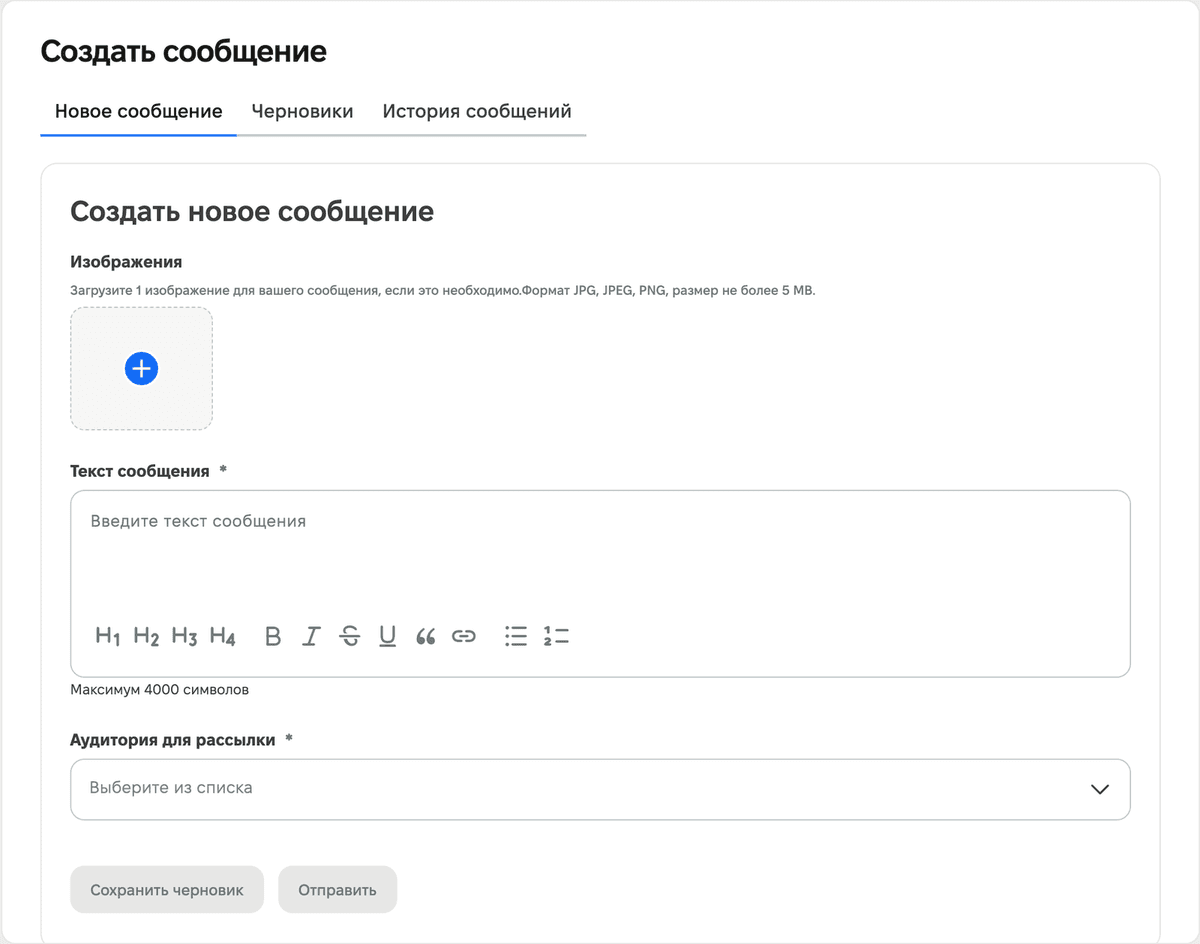
The "Messages" item opens the "Create message" form right away. Use the tabs to switch between the form, drafts, and history. The breadcrumbs on these screens have been removed.
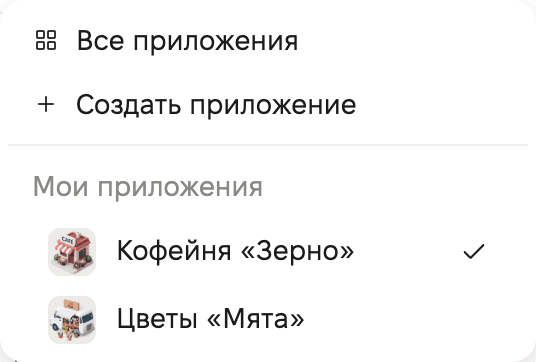
In the left menu, the logo is shown next to the name of the current app and next to each app in the list. For an app without a logo, the menu shows the first letter of the name.
In Chrome on Android, you can once again refresh the dashboard by swiping down when the page is scrolled to the top.
Storefront in Telegram
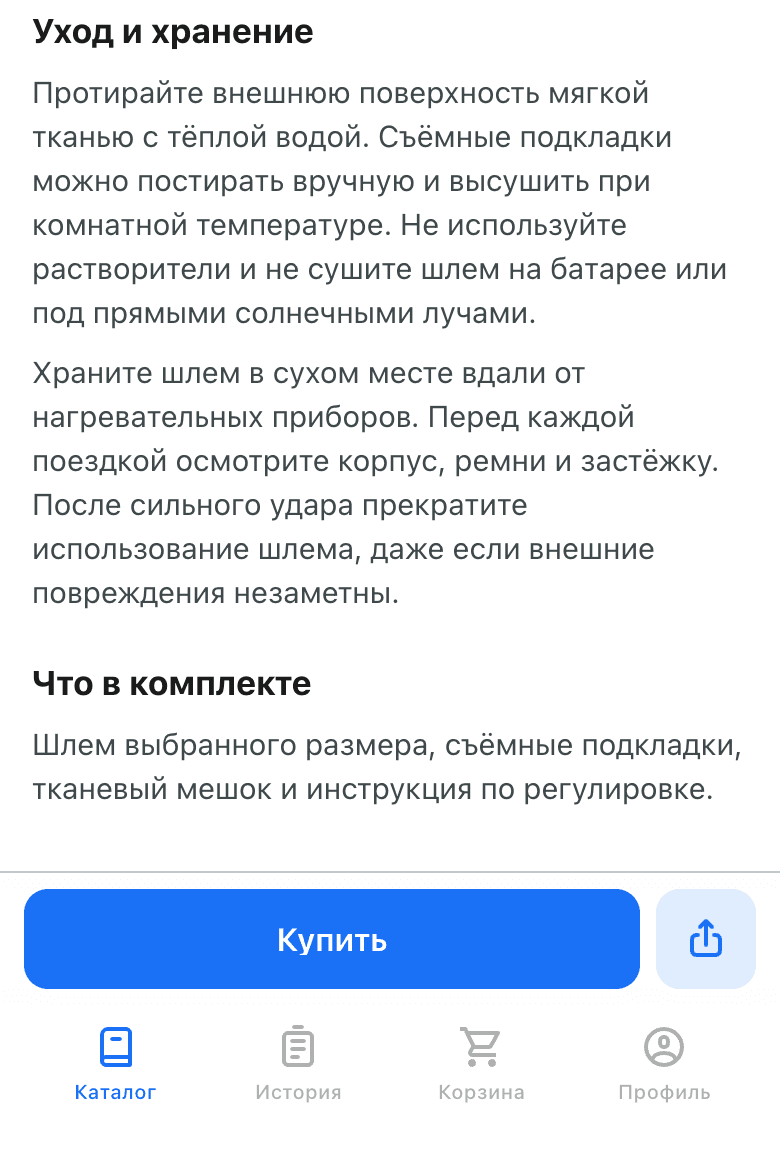
On iPhone, a product card opened from the catalog now scrolls all the way to the end. The last lines of the description remain above the bottom bar.
Website
On the "Digital Products" page, you can try a purchase and see how the bot delivers the file after payment.
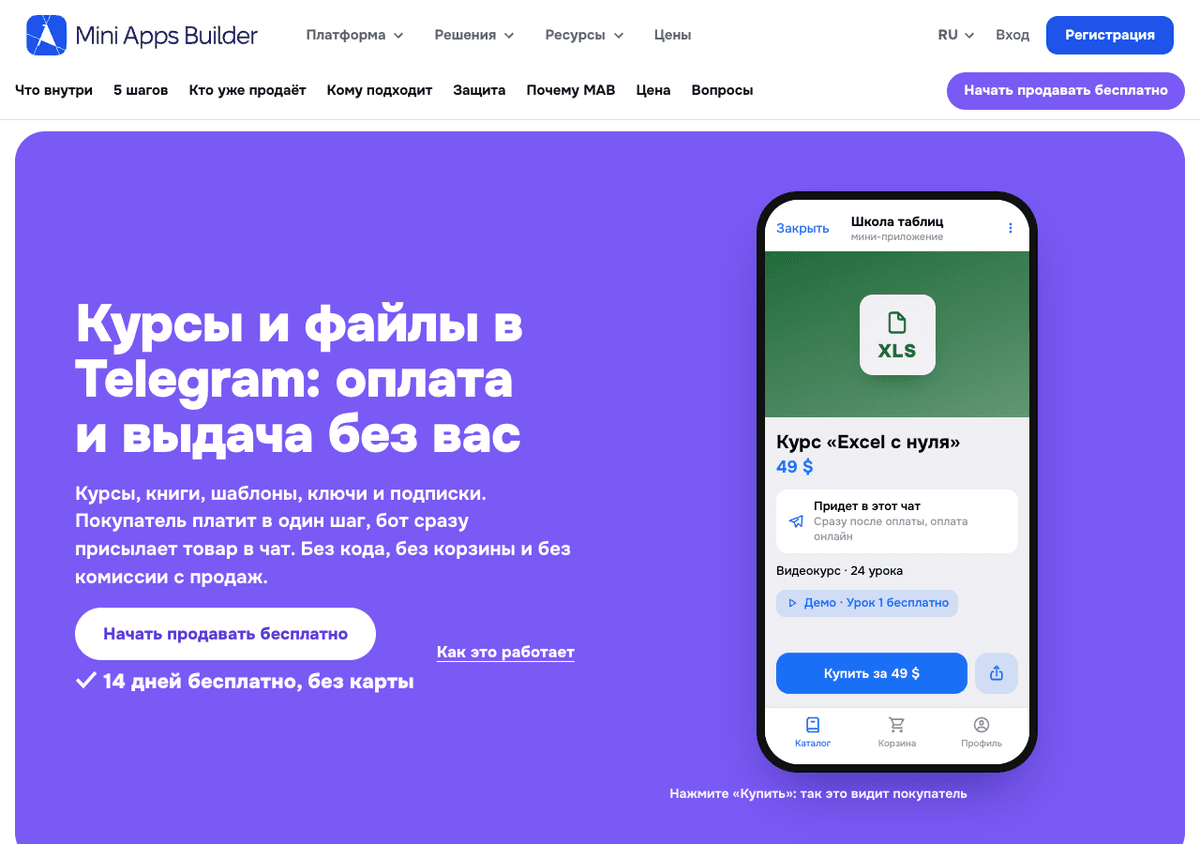
On the "Taking Orders in Telegram" page, you can see the flow from placing an order to notifications for the seller and the buyer. On the "Customer Database" page, you can see how to collect contacts and choose an audience for a campaign.
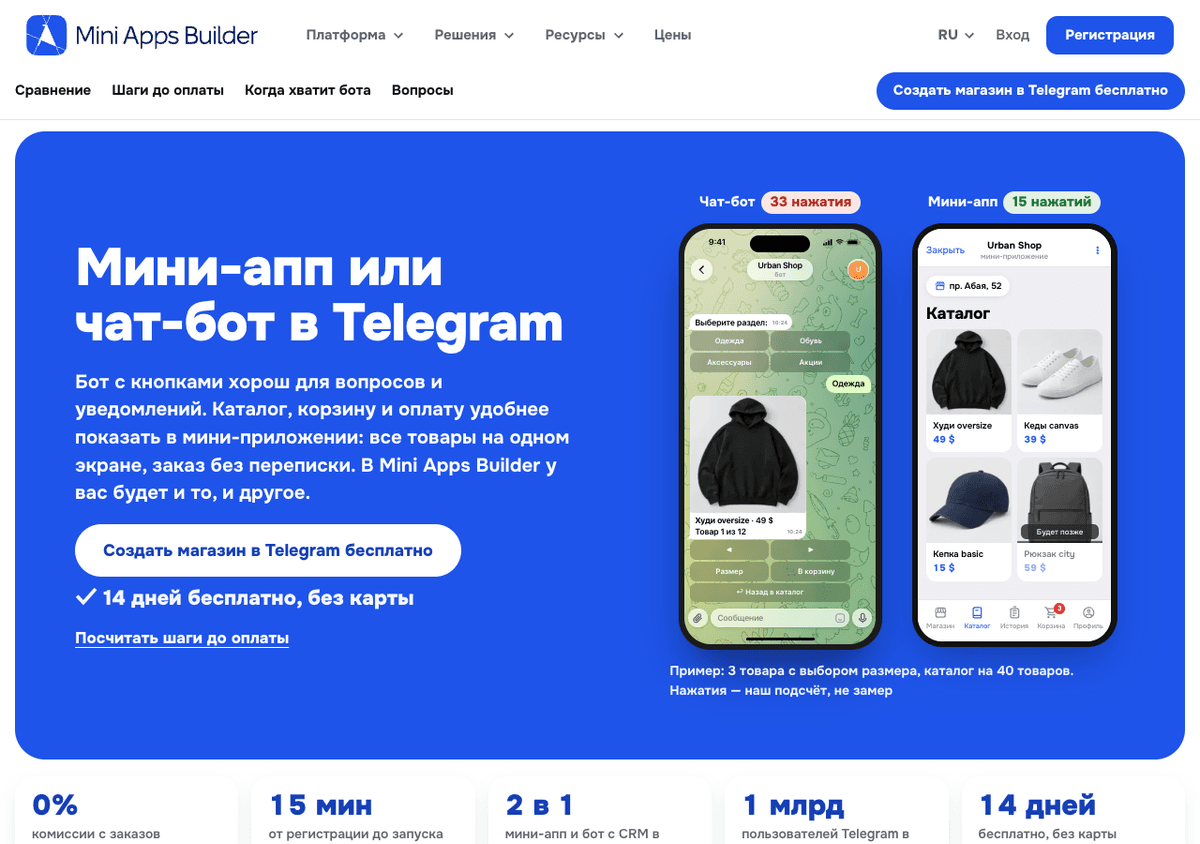
Three comparison pages have been added. They help you choose between a mini app and a chat bot, website, or mobile app.
MCP
When setting up a touchpoint through MCP, the assistant receives a clarification about the average order value. The amount must be specified in currency units. For example, for 7 dollars, enter 7.