Update 1.51.0: step-by-step setup for stores with products, new order tabs, and payment form
In Mini Apps Builder 1.51.0, new apps with products open with step-by-step setup: the dashboard guides you from the first product to accepting orders. This works for the types “Commerce”, “Cafes, Restaurants, Delivery”, “Flowers”, and “Merch”. The release also includes order tabs grouped by status, an updated payment method form, and the label “Free” for free services in the mini app.
Dashboard: step-by-step setup for apps with products
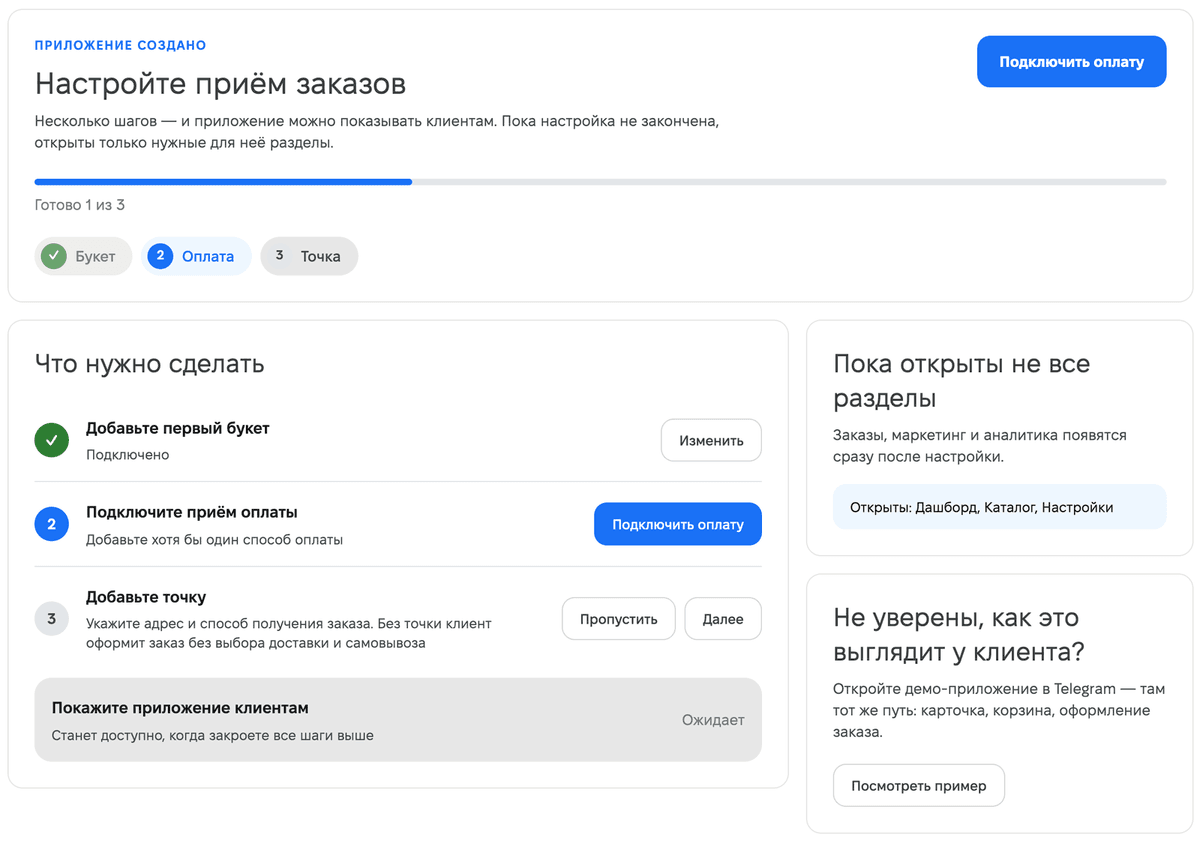
After an app is created, the dashboard opens the “Dashboard” section with a block titled “Set up order acceptance”. At the top, you can see the steps and progress, for example “Done 1 of 3”; below that is the list “What needs to be done”. Previously, only service-based apps were set up this way.
- Product. Add the first product with a name, description, and price. In the “Cafes, Restaurants, Delivery” app, this step is called “Dish”; in the “Flowers” app, it is called “Bouquet”.
- Payment. Add at least one payment method. To get started, cash on delivery is enough; online payment can be connected later in the “Payment methods” section. This step cannot be skipped.
- Location. Specify the address and the order fulfillment method. The location form is shorter than usual: it includes only pickup, hours 10:00–22:00, and payment methods already filled in. This step can be skipped with the “Skip” button. While there is no location, the customer places an order without choosing delivery or pickup. In the “Merch” app, there is no such step.
Until setup is complete, only the sections needed for it are available: “Dashboard”, catalog, and settings. The rest will open after setup. In the product form, secondary fields are hidden for now: category, stock, variants, and others. When all steps are completed, click “Finish setup” in the “Show the app to customers” block.
Step-by-step setup is enabled for apps created starting with this version, including through the MCP assistant. Apps created earlier continue to work as before.
New apps of these types no longer receive a default category. A product can be saved without a category, and the customer will still see it in the catalog.
Dashboard: order tabs
The tabs in the “Orders” section now group orders by status groups. The counter on a tab counts the whole group.
- “New” — orders with the status “New”.
- “In progress” — statuses “Accepted”, “Preparing”, “Prepared”, and “Delivery”. Previously, the tab was called “In process” and showed only the “Preparing” status.
- “Completed” — statuses “Completed” and “Declined”. Previously, canceled orders were visible only in the “All orders” tab.
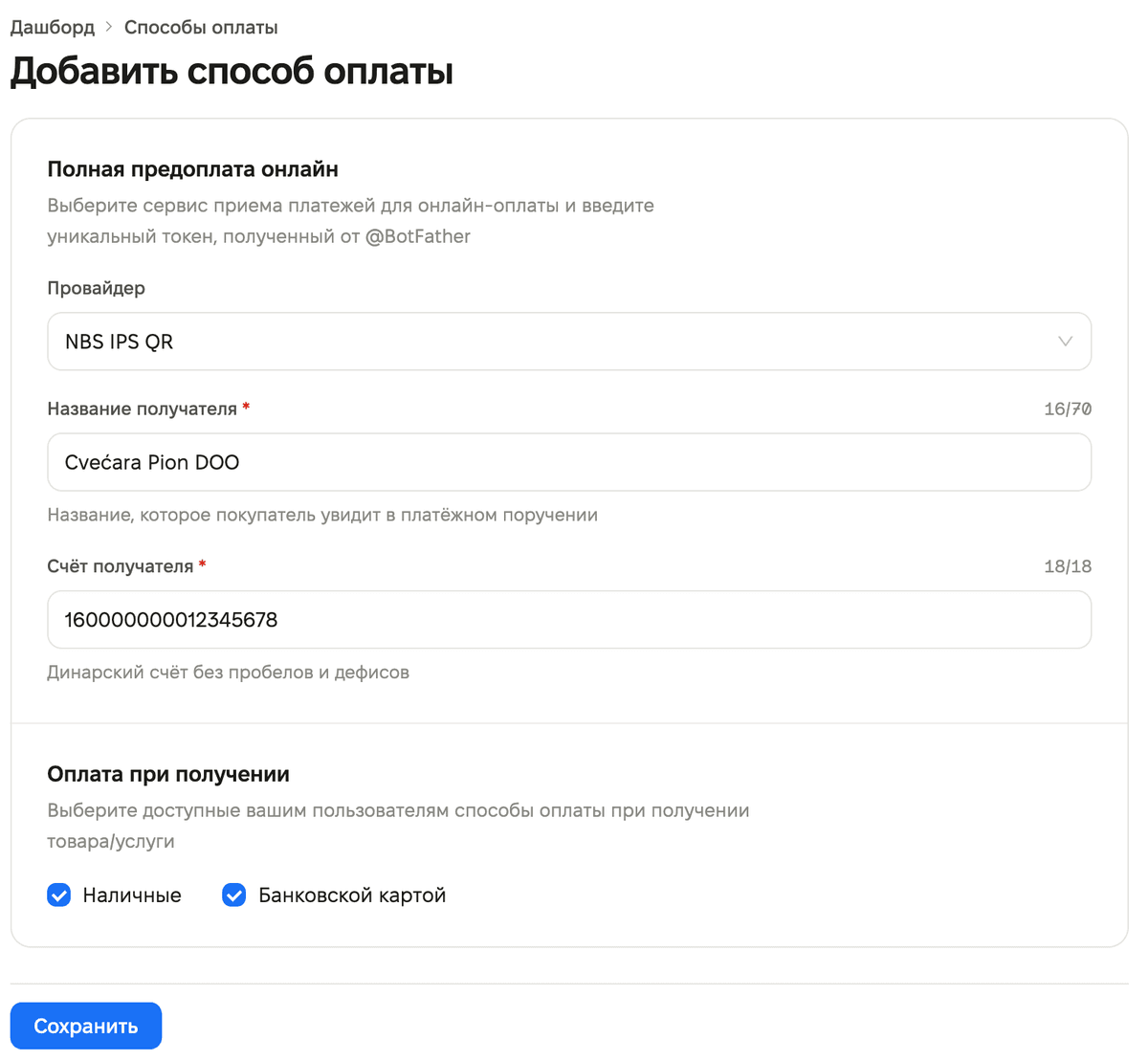
Dashboard: payment method form
The form in the “Payment methods” section is now combined into a single card with two blocks: “Full online prepayment” and “Payment on receipt”. The “Save” button is placed immediately below the card, on the left. This is what the form looks like for any payment system. The fields now have labels “Provider” and “Token”, and required fields are marked with an asterisk. For NBS IPS QR, the fields “Recipient name” and “Recipient account” now show hints and a character counter.
Mini app: free services
For a free service, instead of an empty price, it now says “Free”: on the card in the catalog and on the service page. On the card, this is a button that opens the service page.
Fixes
- In the “Events” and “Channel ads” apps, their sections are back in the dashboard side menu: events, ticket sales and verification, categories, ads, and channels. On mobile, the middle tab in the bottom menu is back.
- The dashboard no longer kicks you to the sign-in page when it is open in multiple tabs or sends several requests at once.
- Buyers using Kyrgyz in Telegram see Kyrgyz translations in the catalog.
- The “Channel ads” app can now be deleted without an error, even if its ads have already been published in channels.
This release also fixes some bugs and improves service stability.
Available on all plans. Step-by-step setup is for new apps of the types “Commerce”, “Cafes, Restaurants, Delivery”, “Flowers”, and “Merch”. The other changes apply to all apps that include these sections.