Update 1.50.0: community and Random Coffee for events, a new table reservation window, clearer errors
In Mini Apps Builder 1.50.0, the Events app got two new plugins. “Community Members” adds a tab with people’s profiles, and Random Coffee introduces them to each other once a week through the bot. Also in this release: a new restaurant table reservation window, product list sorting across the entire list, clearer error messages, and a more transparent team list.
Dashboard: plugins for events
Plugins are enabled in the “Platform” → “Plugins” section. Both are available only in apps with events.
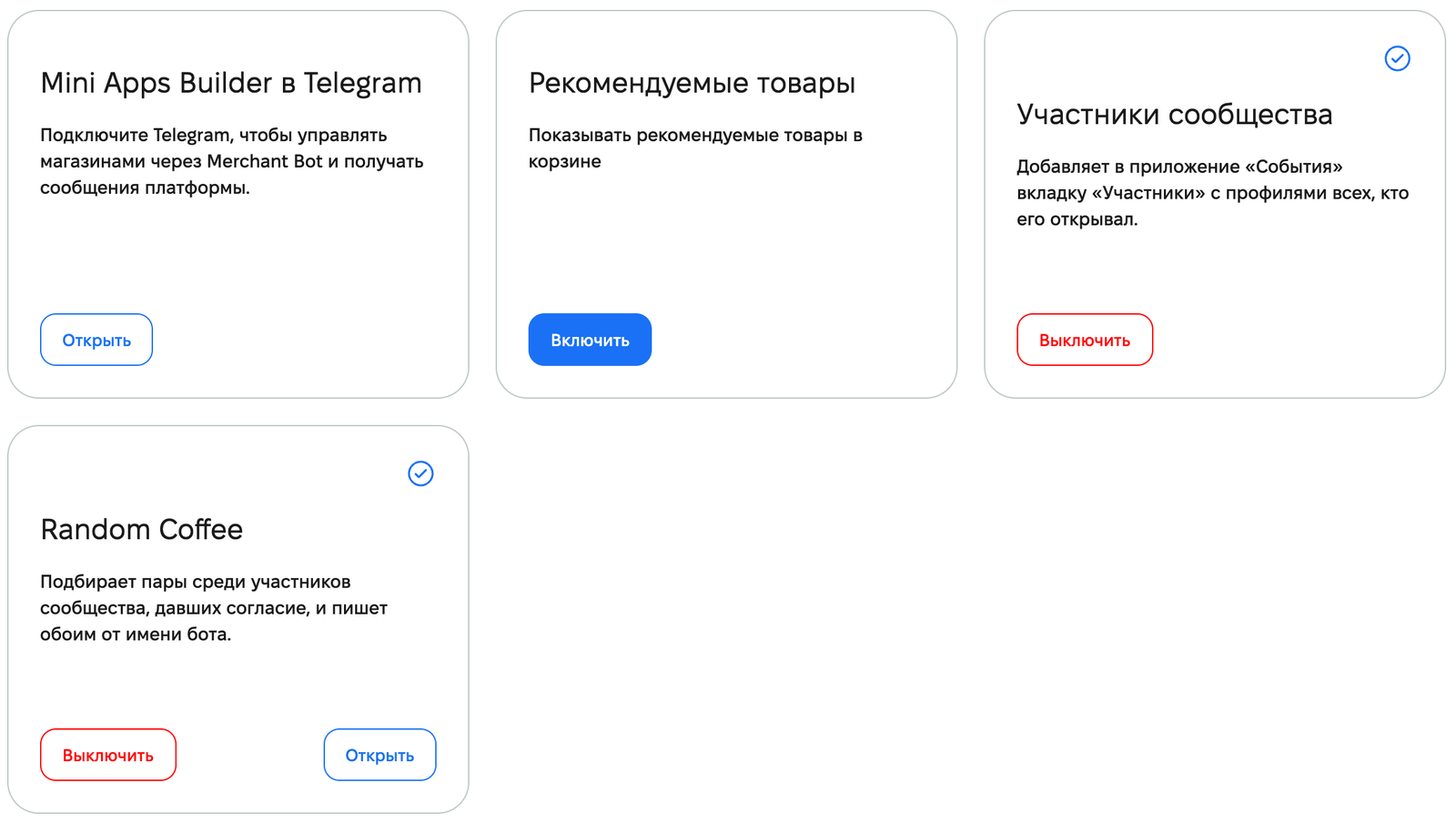
“Community Members”. Adds the “Members” tab to the Events app with profiles of everyone who has opened it. Participants find each other by fields and projects.
Random Coffee. Works only together with “Community Members”. Once a week, the bot sends each participant who opted in a new person to meet. Matches are made based on shared fields and do not repeat. Both receive a message from the store’s bot with each other’s name and contact details. In the plugin settings, choose the “Round day” and “Hour”. The time is based on the store’s time zone.
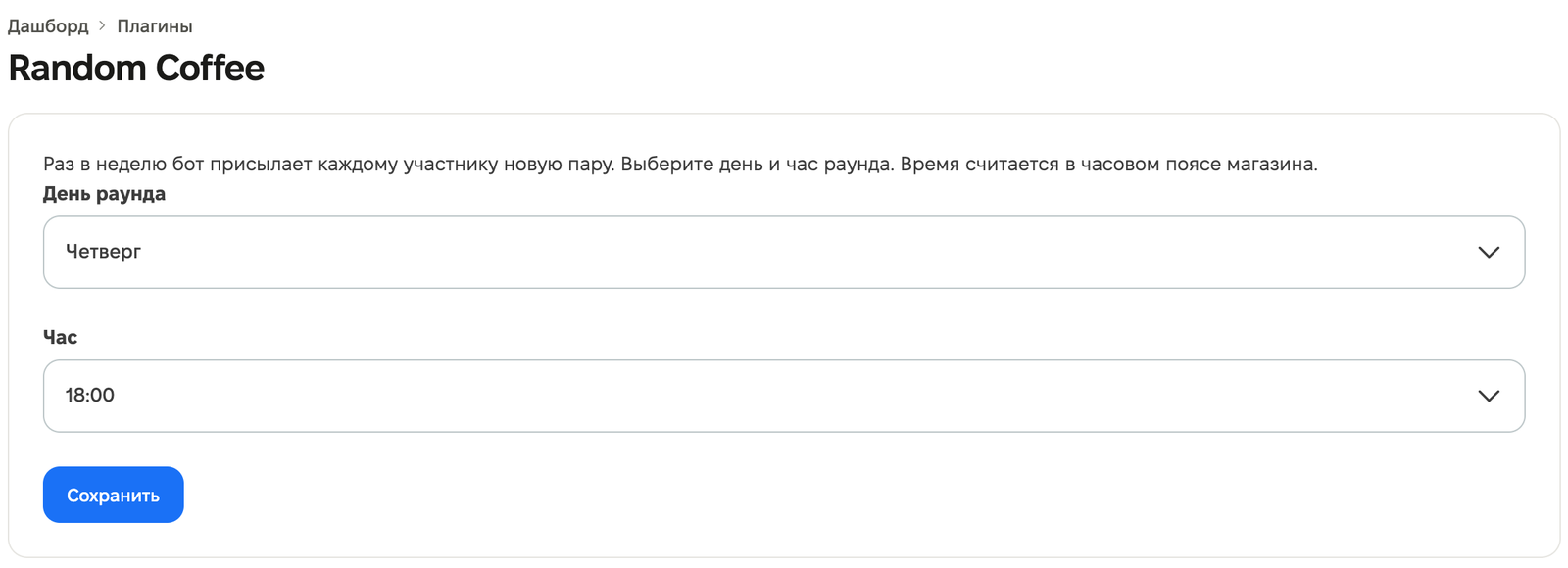
If you disable “Community Members” while Random Coffee is enabled, the dashboard will ask for confirmation: “Disable ‘Community Members’?” Random Coffee will stay enabled, but matches will stop being assigned and participants will no longer be able to sign up.
Events mini app: members and Random Coffee
The community profiles are visible in the “Members” tab. A participant fills out their own profile: name, at least one contact, “Fields”, and “Projects”. Previously, the profile had a “show in list” checkbox; now a participant has three visibility levels in the “Who can see the profile” section:
- “Everyone in the community” — the profile is visible in the “Members” tab and in event participant lists.
- “Only at my events” — the profile is visible to people with a ticket to the same event.
- “Nobody” — the profile does not appear in any list.
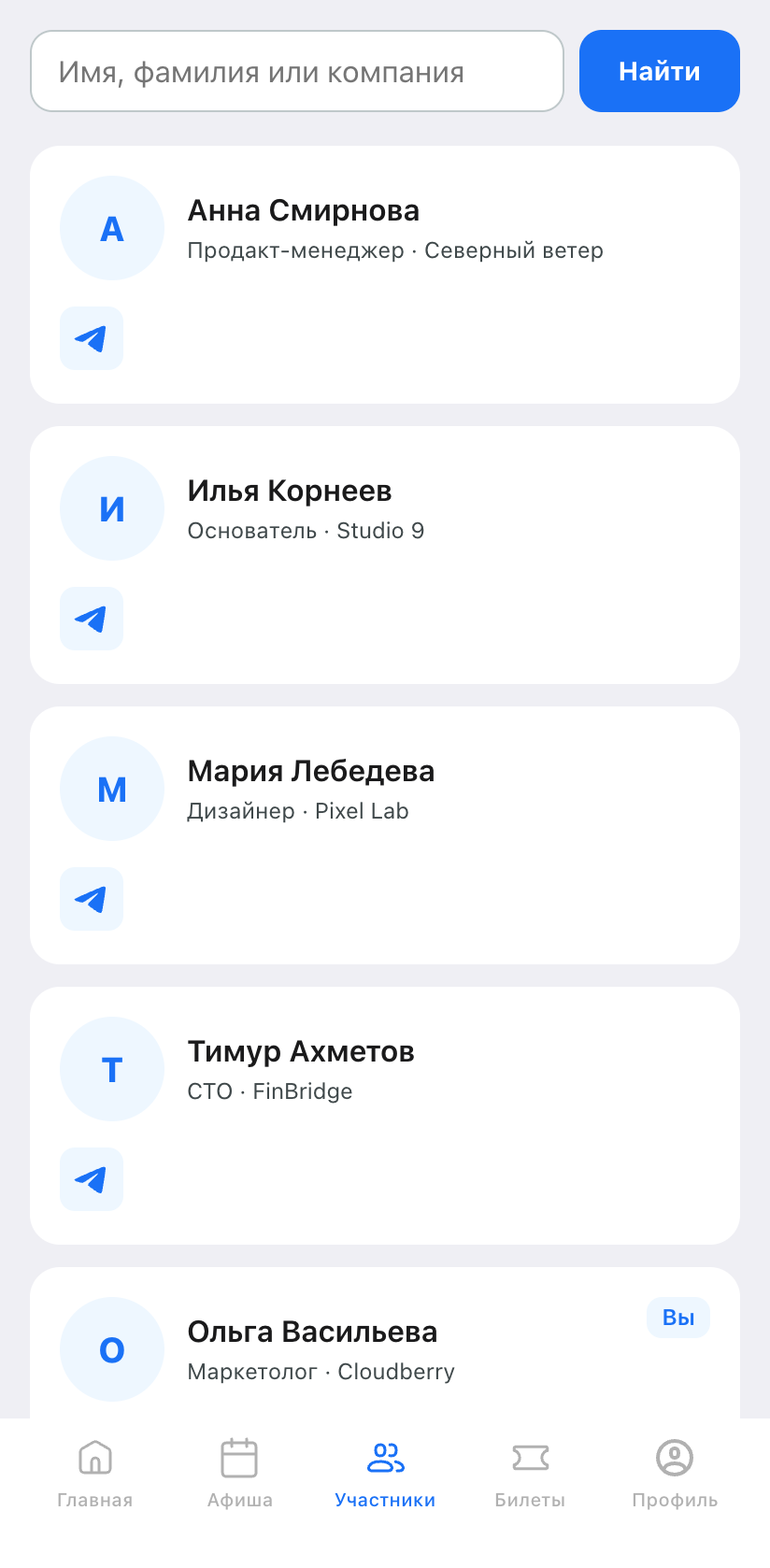
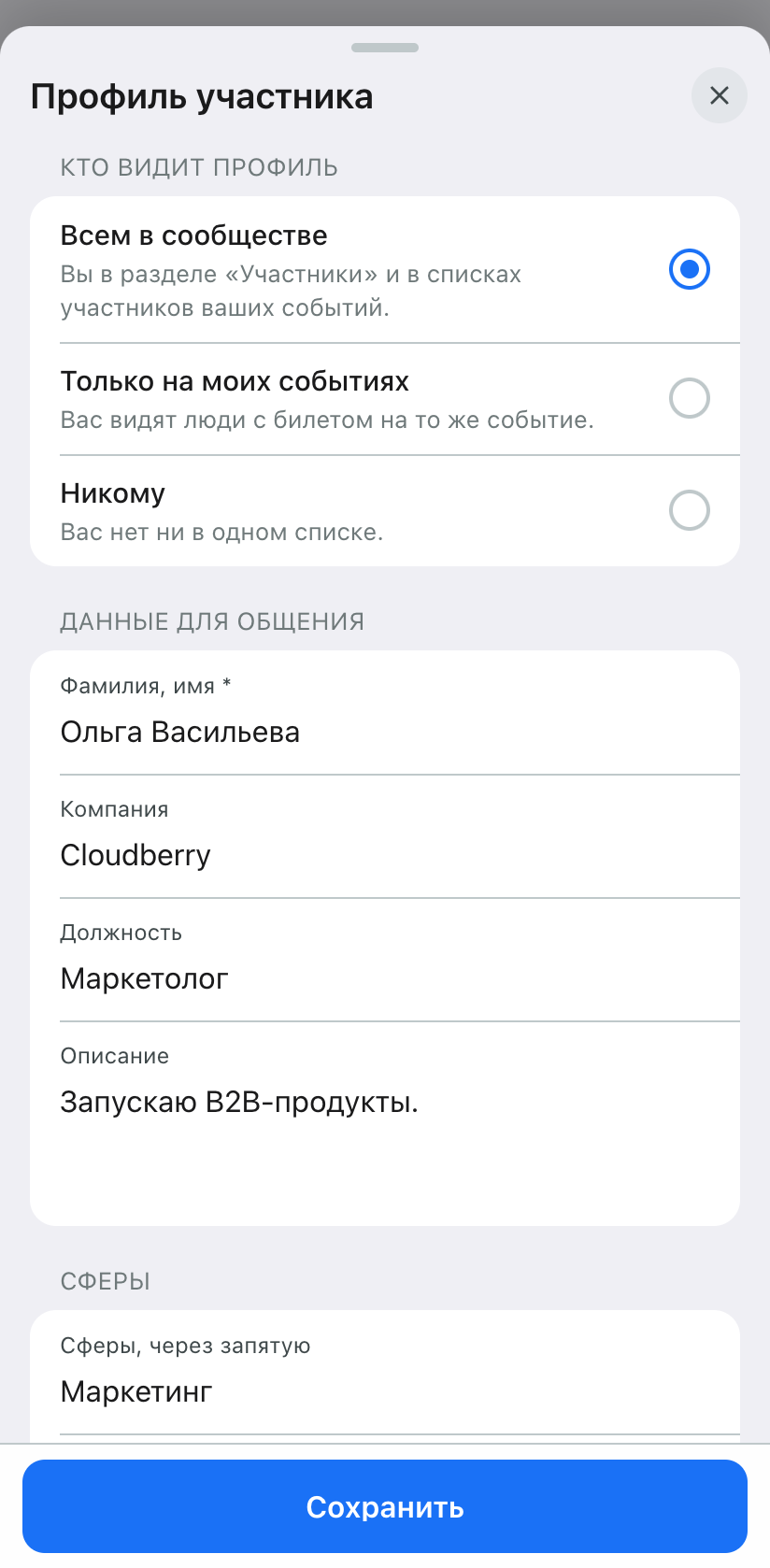
Profiles that were previously visible in event participant lists remain visible only at events. On the first visit to the tab, the mini app offers a choice: keep the profile visible or tap “Hide me”.
If Random Coffee is enabled, the “Members” tab shows a rules window once. The “Participate” button signs the participant up immediately if the profile is completed and visible to everyone. Otherwise, it opens the profile. The “I’m participating in Random Coffee” checkbox can be turned off in the profile at any time. It is available only when visibility is set to “Everyone in the community”.
Events mini app: feed and tickets
- The event and ticket feeds no longer have an “All” tab. The feed opens on upcoming events. If there are none, the “View past” button switches to past events.
- Starting the day after the event, its ticket gets the “Completed” status.
- If a ticket for an event that has already ended is scanned at the entrance, the dashboard will show the result “Event has ended”.
- On the organizer’s home screen, the title and category are shown under the cover image.
We fixed two profile bugs. After changing the Telegram account on one device, the mini app could retain the profile of the previous account. After saving the profile, the “Members” tab showed the previous visibility until reloaded.
Mini app: table reservation and confirmations
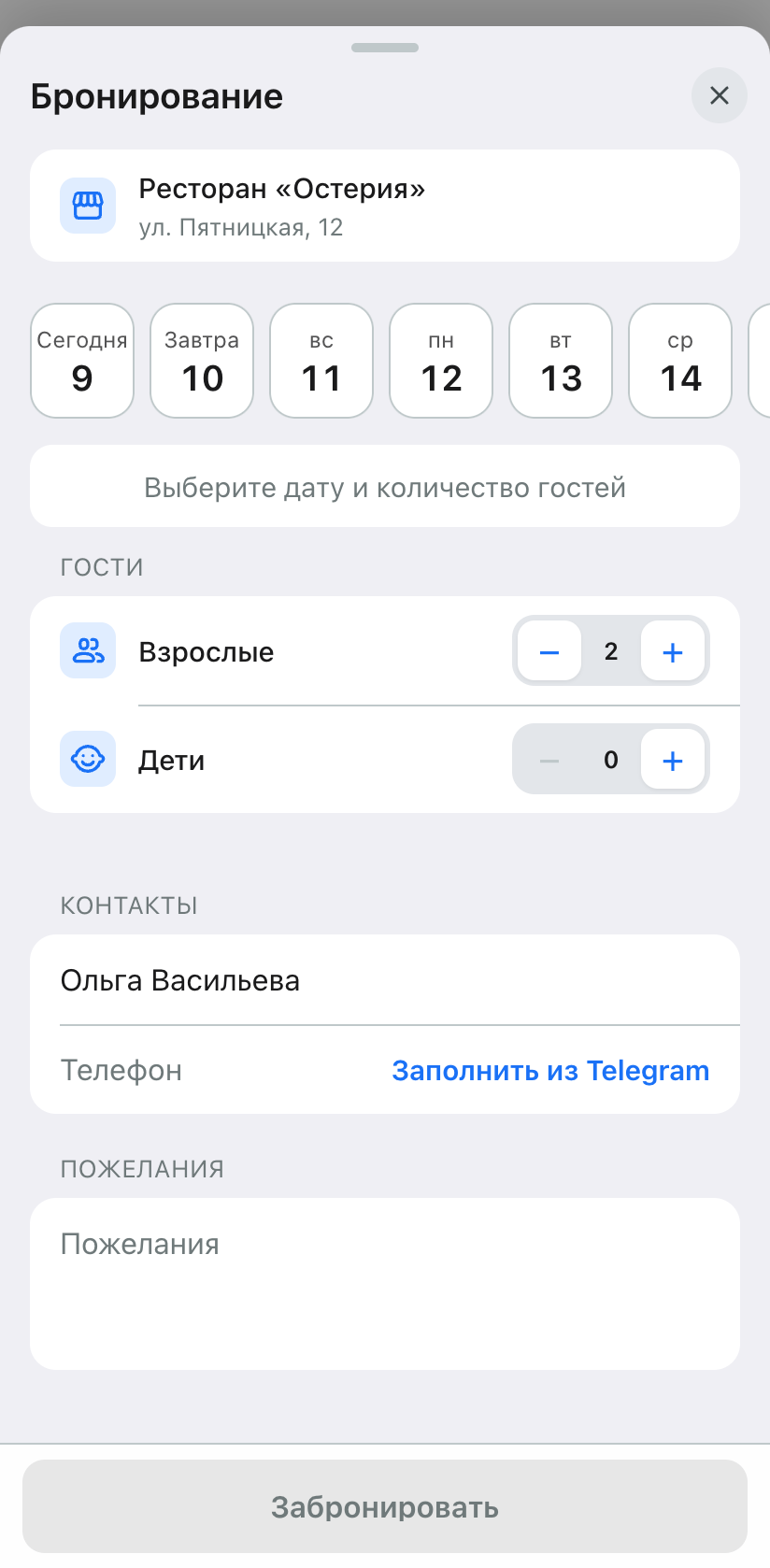
Restaurant table reservation. The full restaurant description remains on the page, while the entire reservation flow has been moved to a single full-screen window, like service booking. It includes date, time, number of guests, contact details, and requests. Date and time are not selected by default. Time is chosen in a single horizontal row. If you change the date or number of guests, the time resets and available slots are loaded again. The “View menu” button has been made smaller and secondary.
Confirmations in the venue profile. The verified identity icon opens only identity verification. The qualification icon opens only that qualification.
Dashboard: platform, team, products
“Platform” section. The “Recommended products” toggle has moved from app settings to “Plugins”. Its state has been preserved. Plugin and integration cards now look the same.
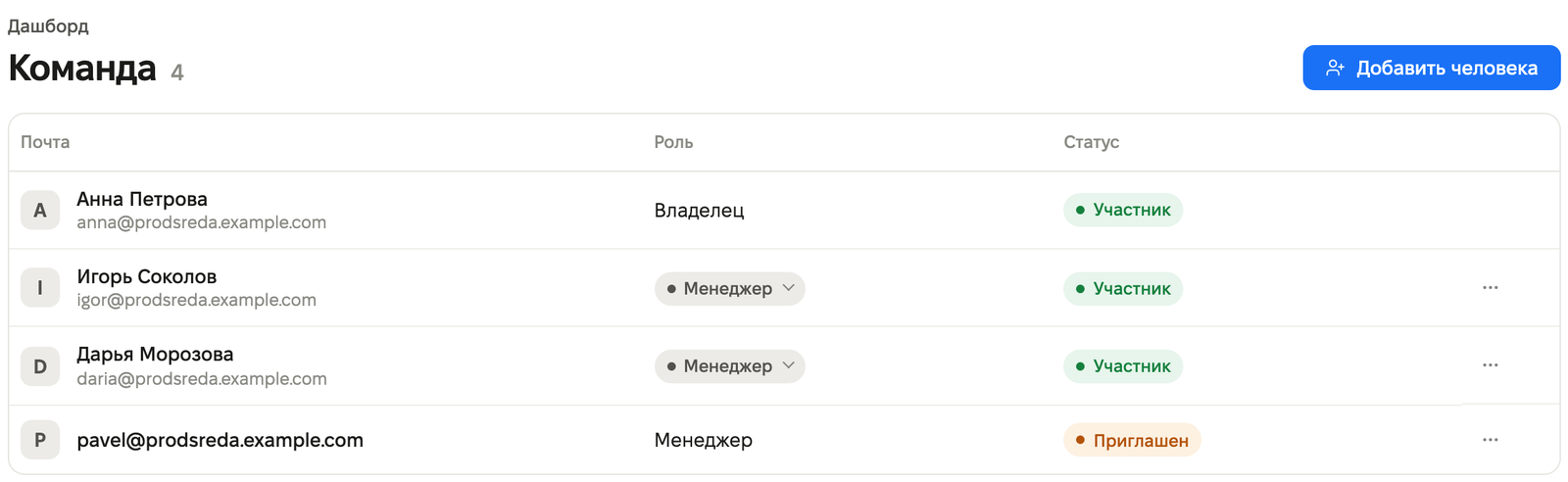
Team. In the store settings, under “Team”, members and invitations are now combined into one list with their statuses. The owner is first, and cannot be removed or have their role changed. A member has the action “Remove from team”, and an invitation has “Cancel invitation”. Previously, a removed member could reappear in the list because of an old accepted invitation. That no longer happens, and accepted and declined invitations are not shown in the list.
Product list. The “Quantity, pcs” column now shows stock levels, including zero. If stock is not set, “Not specified” is shown. Sorting by name, category, price, and quantity now applies to the entire list, not just one page.
Clearer errors. If the service returns an error, the dashboard explains what happened and what to do. For example: “You don’t have permission for this action. Ask the owner to grant access.” or “Couldn’t connect to the service. Check your internet connection and try again.” Nine messages about incorrectly filled fields are now clearer, for example: “A paid product must have a price greater than zero. A free product must have a price of zero.”
Orders. The orders page no longer crashes if you open the store from the app list and go straight to orders.