Personnalisation de l'application
Personnalisation de l'application
Paramètres standard de l'apparence de l'application via Telegram.
Dans toute application Telegram, vous pouvez configurer les éléments d'apparence suivants :
- Avatar de l'application
- Description courte
- Message de bienvenue — affiché lors de la première ouverture du chat
- Bouton « Ouvrir » dans la liste des chats
Avatar de l'application
En général, l'avatar est le logo de l'entreprise ou la photo du propriétaire.
Vous pouvez ajouter un avatar depuis n'importe quel appareil.
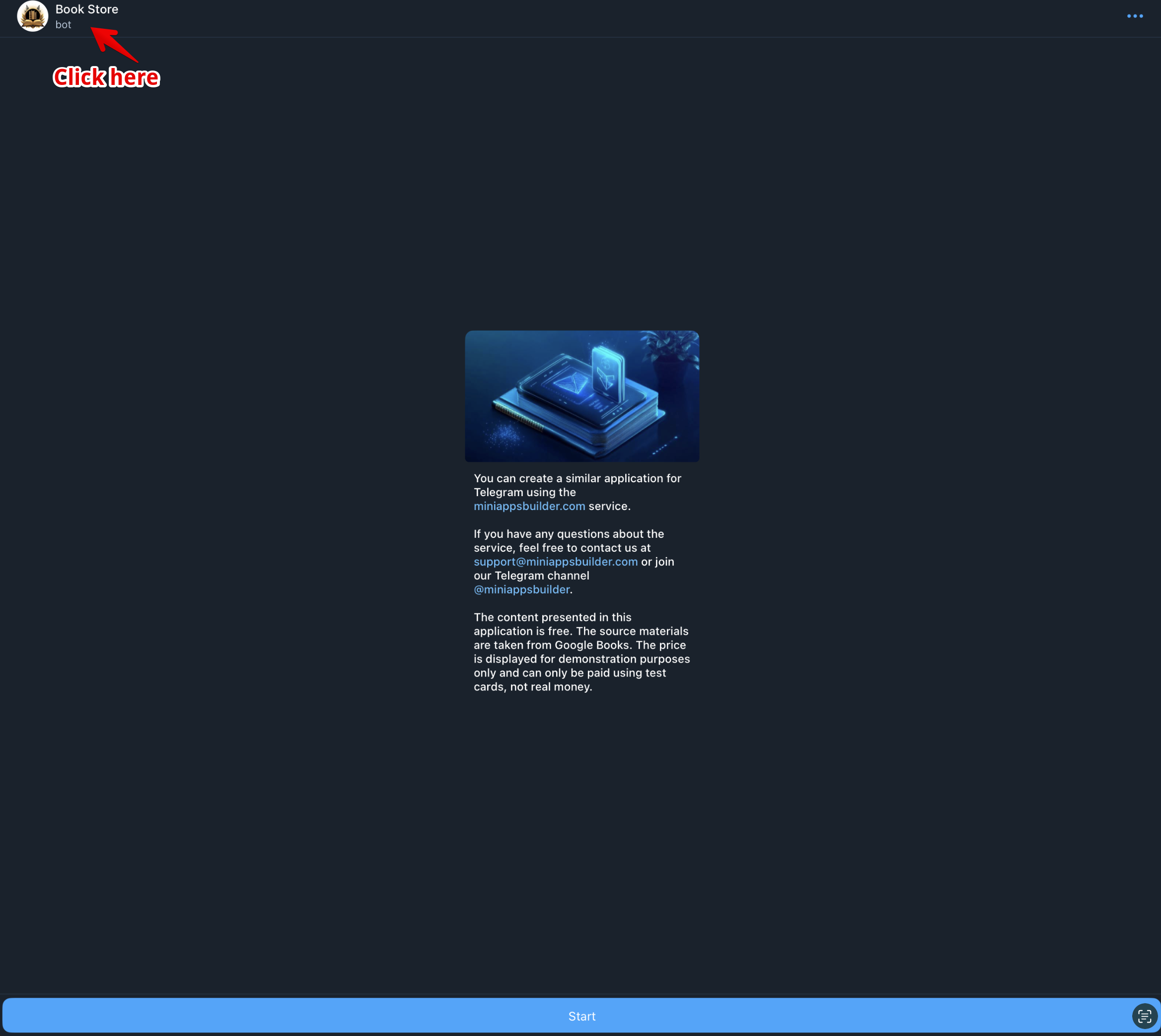
Cliquez sur le nom de l'application (fig. 1).
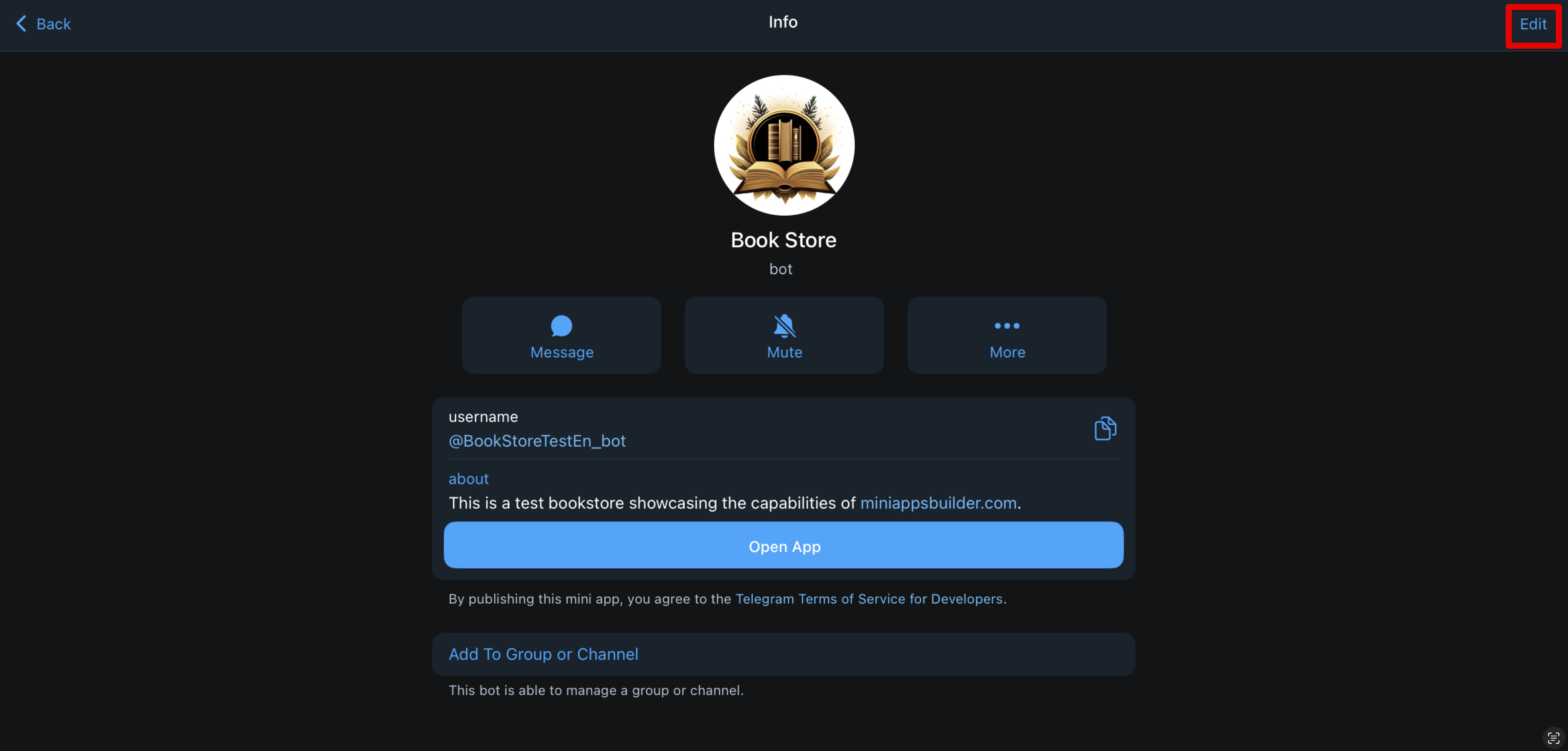
Cliquez sur le bouton « Modifier » (fig. 2).
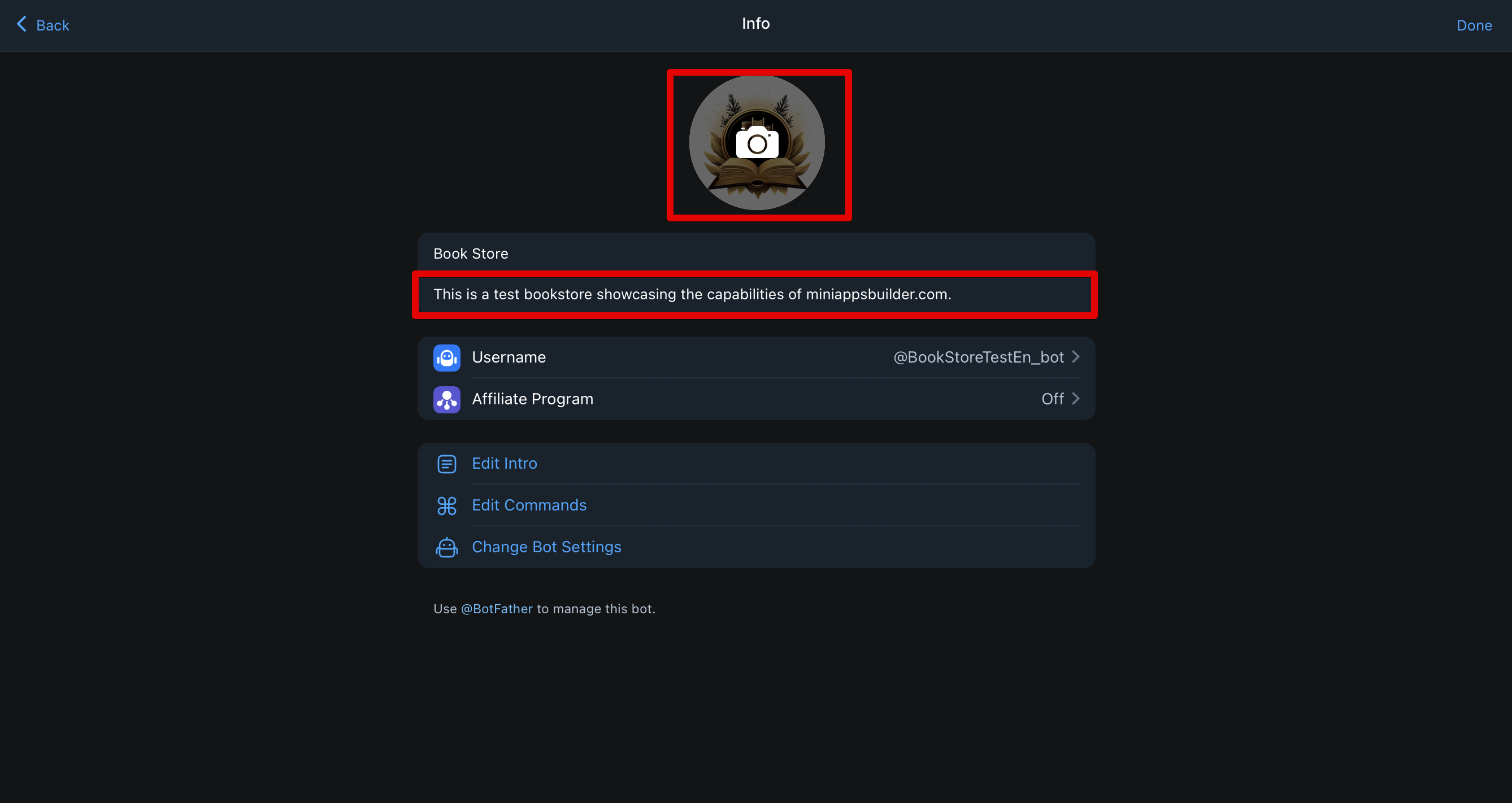
Cliquez sur l'icône de l'appareil photo (fig. 3), téléchargez l'image souhaitée puis cliquez sur « Enregistrer ».
Vous pouvez remplacer l'avatar à tout moment.
📌 Exigences techniques pour l'avatar :
- Format : JPG, PNG ou WEBP Taille recommandée : au moins 512×512 pixels (Telegram découpera l'image en rond) Proportions : carré (1:1), pour éviter les déformations Taille maximale du fichier : jusqu'à 5 Mo
Description courte
La description courte s'affiche sous l'avatar (fig. 4).
Pour la modifier, répétez les étapes de la section sur l'avatar, mais au lieu de télécharger une image, cliquez sur le texte sous l'avatar et mettez-le à jour.
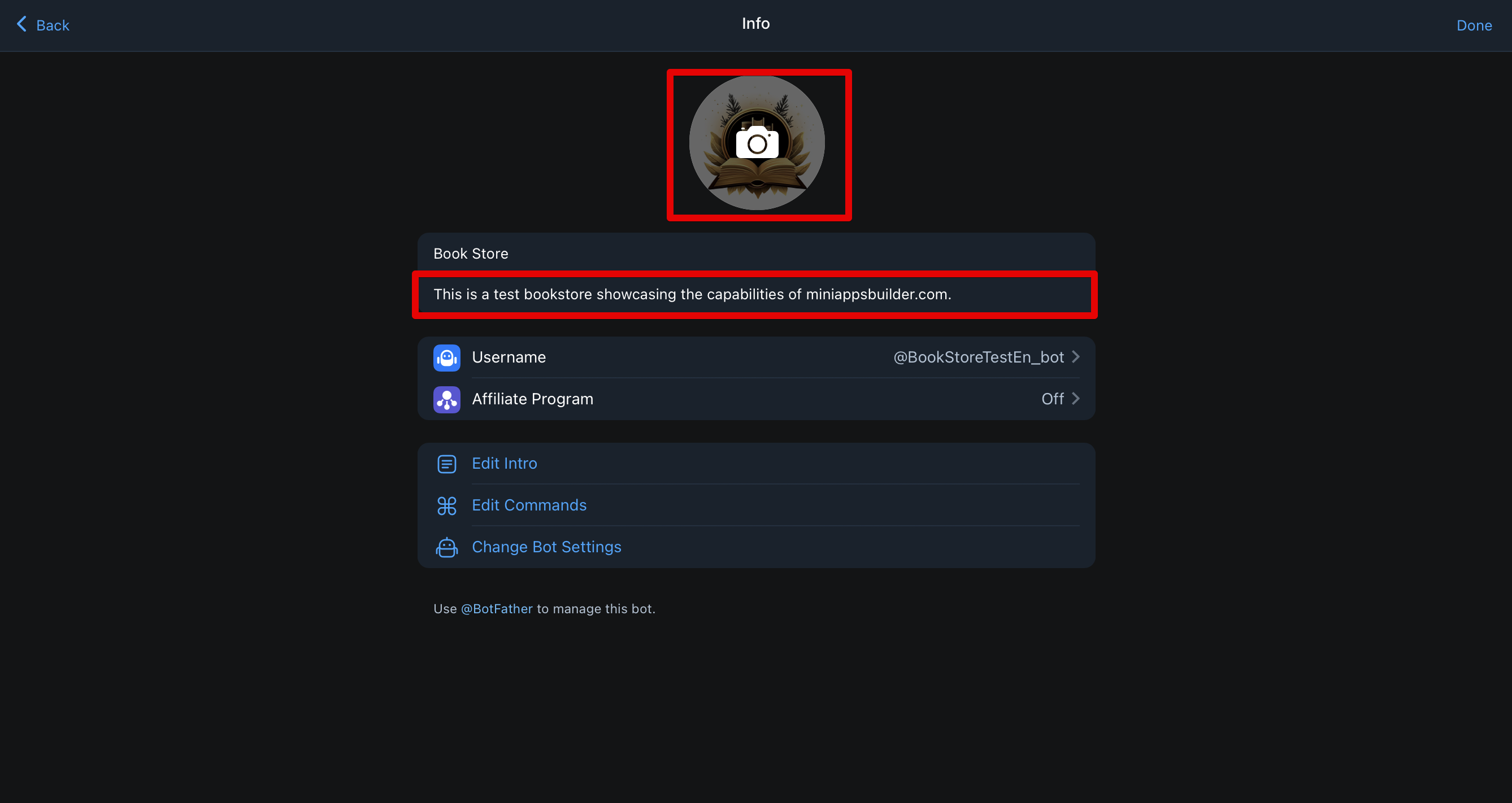
📌 Exigences techniques :
- Longueur : jusqu'à 120 caractères espaces compris Langue : doit correspondre à la langue de votre audience ou aux paramètres de localisation Format : texte simple uniquement — pas d'émojis, de liens, de HTML ni de Markdown Prise en charge Unicode : tout alphabet est accepté, mais évitez les caractères incompréhensibles Interdit : mots enfreignant les règles de Telegram (par ex. liés à la drogue ou à la violence) Formulations trompeuses (par ex. « officiel » si ce n'est pas le cas)
Message de bienvenue
Ce message apparaît lors de la première ouverture du chat avec votre application, ainsi que si l'utilisateur supprime tous les messages dans le chat (y compris la commande /start). Il peut contenir une image ou un GIF et/ou du texte.
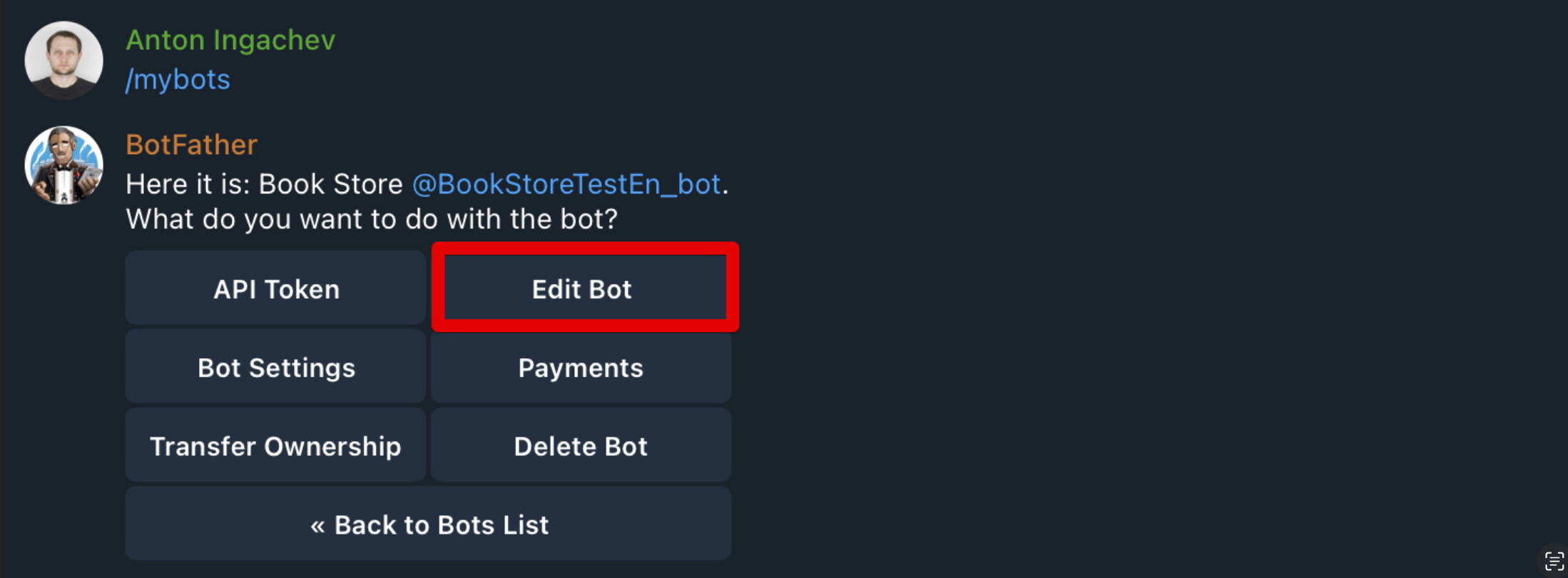
La configuration se fait via @BotFather. Ouvrez BotFather, choisissez « My Bots », puis sélectionnez le bot souhaité. Un menu s'ouvrira, comme sur la fig. 5. Cliquez sur « Edit Bot ».
Une liste de sections éditables s'ouvrira, comme sur la fig. 6. Nous nous intéressons aux points 1 et 2.
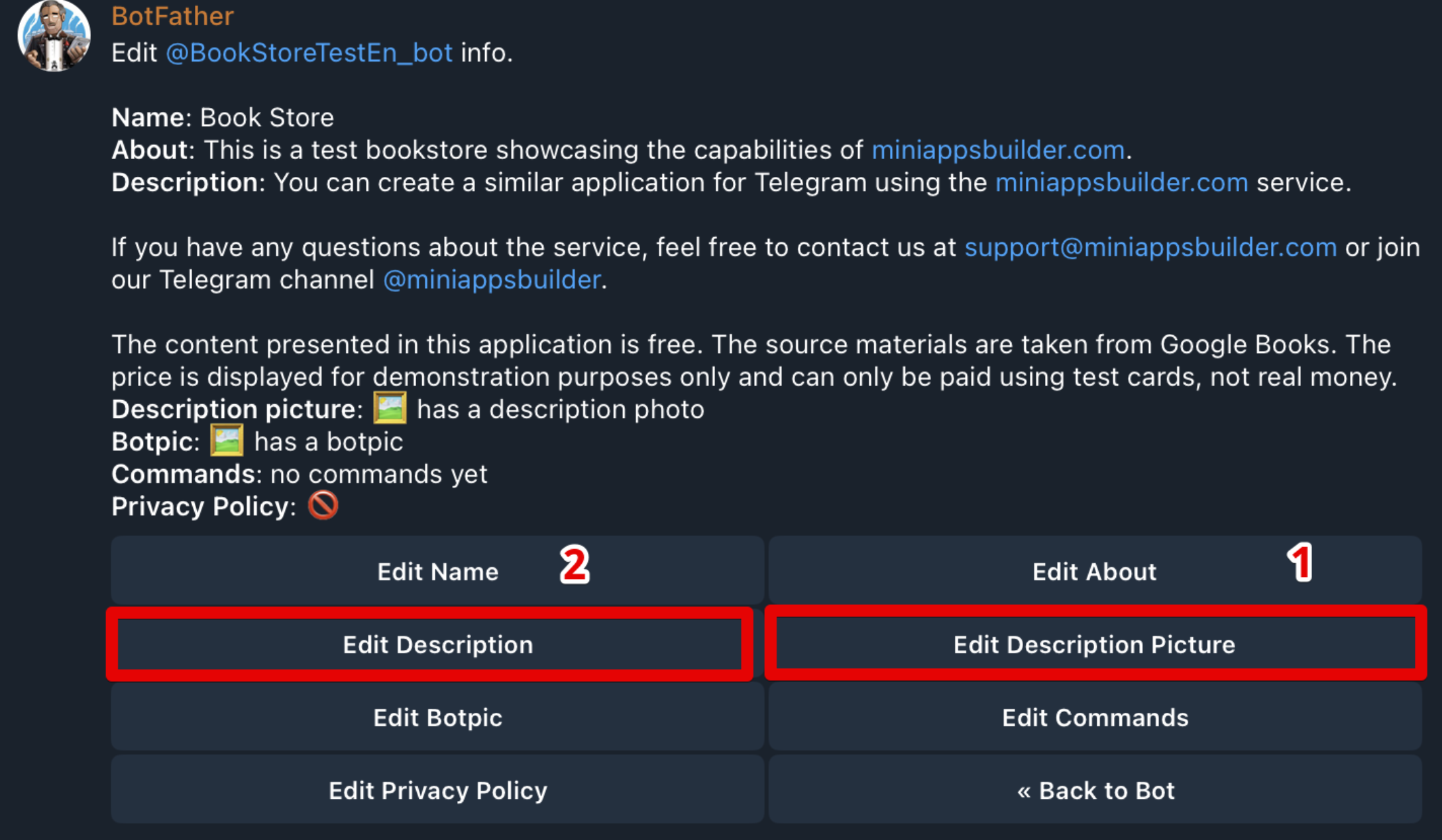
Pour ajouter ou remplacer l'image/GIF, choisissez le point 1.
📌 Exigences techniques :
- Image : formats — JPG, PNG ou WEBP ; taille — 640×360 pixels GIF : format — GIF ; tailles acceptées — 320×180, 640×360 ou 960×540 pixels
Pour ajouter ou modifier le texte, choisissez le point 2.
📌 Exigences techniques :
- Texte : jusqu'à 512 caractères espaces compris. Markdown pris en charge.
Après la configuration, ouvrez l'application. Si aucun message n'est présent, le message de bienvenue s'affichera immédiatement. Si des messages existent — supprimez-les tous, y compris la commande /start, pour voir le message de bienvenue.
Bouton « Ouvrir »
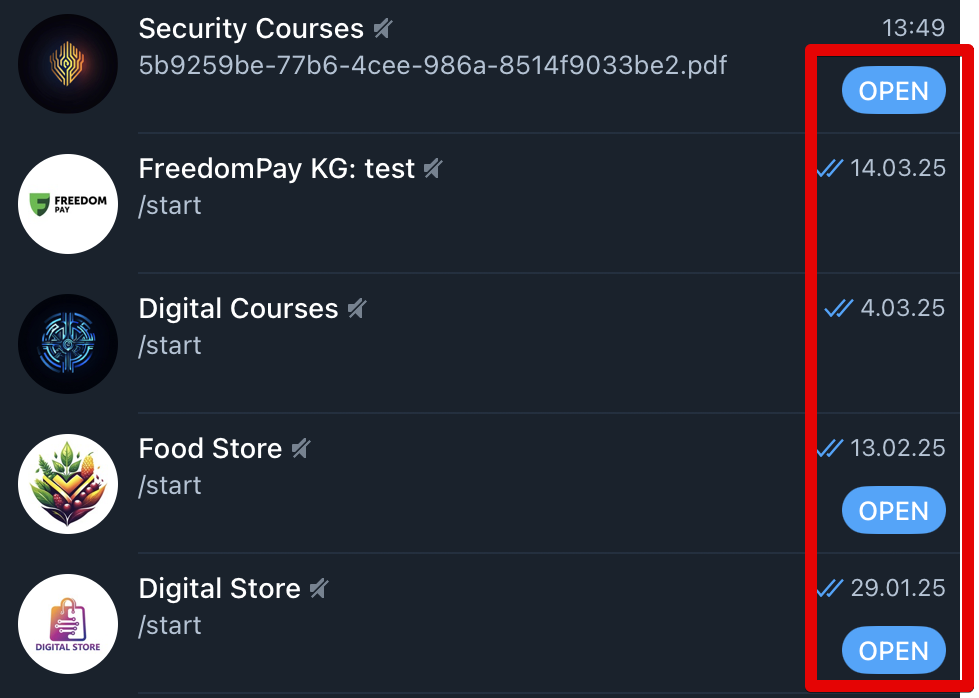
Le bouton ressemble à la fig. 7. Il permet aux utilisateurs de lancer l'application directement depuis la liste des chats ou la recherche — rapidement et facilement.
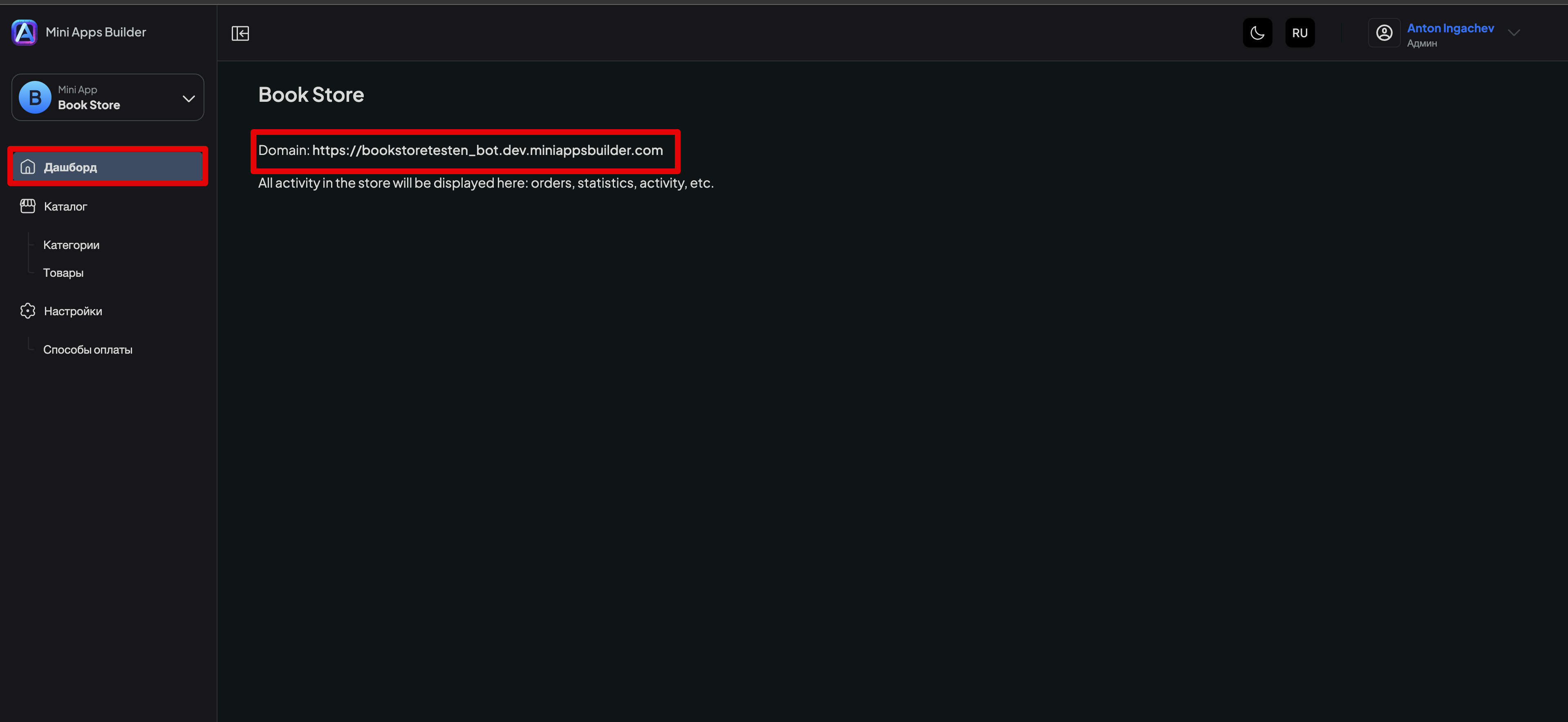
Pour ajouter le bouton « Ouvrir », ouvrez l'application concernée dans Mini Apps Builder, allez dans la section « Dashboard » et copiez le lien indiqué après le mot « Domain » (fig. 8).
Ensuite, ouvrez @BotFather dans Telegram, choisissez /mybots, sélectionnez l'application souhaitée et cliquez sur « Bot Settings ». Un menu s'ouvrira, comme sur la fig. 9.
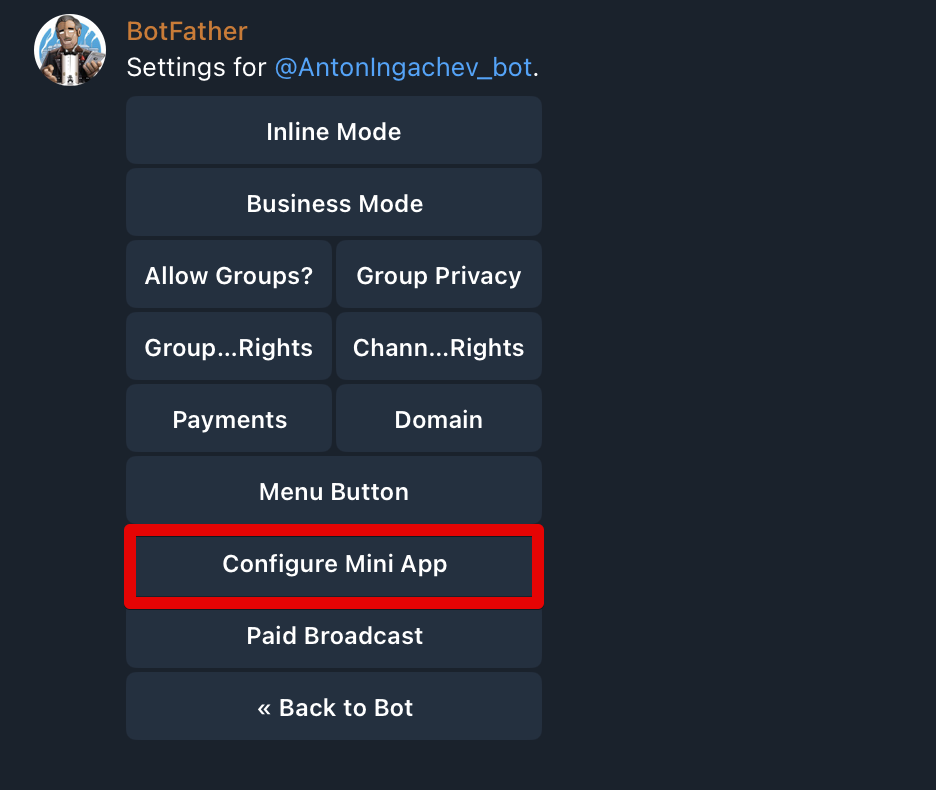
Sélectionnez « Configure Mini App ». Un écran s'ouvrira, comme sur la fig. 10.
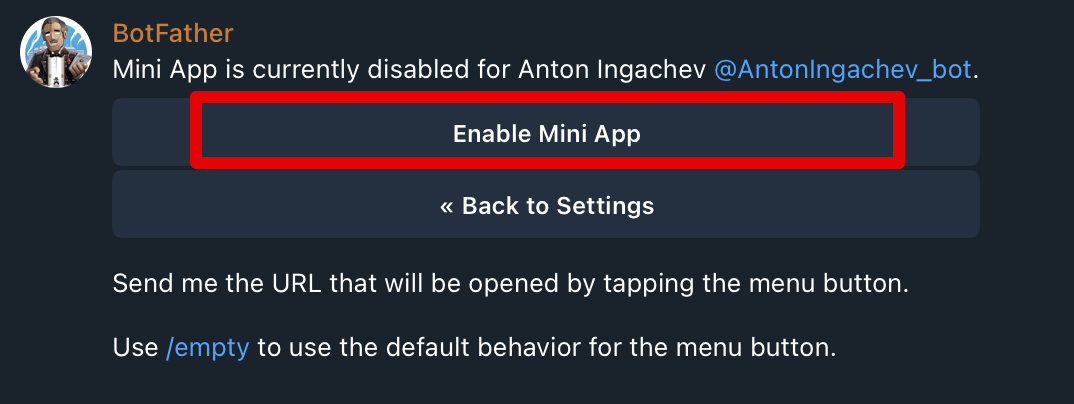
Cliquez sur « Enable Mini App ». BotFather vous demandera de coller l'URL — c'est le lien que nous avons copié à la fig. 8. Après l'envoi du message contenant le lien, une confirmation indiquera que tout est configuré.
Après cela, le bouton « Ouvrir » apparaîtra dans votre application. Parfois, il faut fermer puis rouvrir Telegram pour qu'il s'affiche.